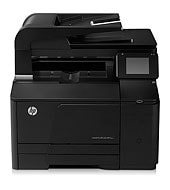
You load 150 sheets in the input tray and collect output in a 125-sheet bin. Duplex printing is manual with driver support, which suits 250 to 1500 pages monthly. This color laser MFP, the HP LaserJet Pro 200 color M276nw, prints, copies, scans and faxes.
HP LaserJet Pro 200 Color M276 Full Feature Software and Drivers
Win 10 64-bitWin 7 64-bit
On Windows, download HP LaserJet Pro 200 Color M276 Full Feature Software and Drivers (103.4 MB). On macOS, download Install HP Easy Start (6.3 MB).
Quick install: download the recommended file above, run it, and connect the USB cable only when the installer asks, then print a test page. Full steps
HP LaserJet Pro 200 color MFP M276nw driver for Windows
Full software and drivers
Win 10 64-bitWin 7 64-bit
Details
- File name
LJ-Pro-200-color-MFP-M276-full-solution-15189.exe- MD5 checksum (from HP)
2617c52373682e427f8ede9574982be0- Software ID (HP)
- kj-107661-7 · verify on HP
Firmware
Win 10 64-bitWin 7 64-bit
Details
- Description
- This utility is for use on Microsoft Windows 32 and 64 bit operating systems. The utility can be used with a USB connection or network connection. Be…
- File name
HP_LaserJet_M276_colorMFP_Series_FW_Update_20190401.exe- MD5 checksum (from HP)
3ef40524b6f8566973e35f1a105e82be- Software ID (HP)
- kj-108130-9 · verify on HP
- Release notes
- Read on HP
Utilities and other software
Win 10 64-bitWin 7 64-bit
Details
- Description
- The PCL6 driver is recommended for most users for printing. It provides the best overall speed, print quality and printer feature support for most…
- File name
LJ-Pro-200-color-MFP-M276-driver-only-15188_1.exe- MD5 checksum (from HP)
321c102a58a1e404e6187996726d8ca9- Software ID (HP)
- kj-107843-6 · verify on HP
Win 10 64-bitWin 7 64-bit
Details
- Description
- The driver installer file automatically installs the PCL6 driver for your printer. This is a driver-only software solution intended for users who…
- File name
LJ-Pro-200-color-MFP-M276-driver-installer-15189.exe- MD5 checksum (from HP)
d0b51e1ee22ede63e8262312ce8a72dd- Software ID (HP)
- kj-107662-5 · verify on HP
Win 10 64-bitWin 7 64-bit
Details
- File name
HPEPrintAppSetupx64.exe- MD5 checksum (from HP)
f47f746e9f3a0bf359c06d3a4d889b43- Software ID (HP)
- lj-166432-4 · verify on HP
More HP LaserJet Pro 200 color MFP M276nw driver downloads: Utilities and other software
Win 7 64-bit
Details
- Description
- This utility fixes an issue when sending a fax from a PC. If " HP Send Fax " is used to send a fax from a computer and this computer comes with "…
- File name
HPLJ_M276_Fax.exe- MD5 checksum (from HP)
7cb3e1cb7d8e8b831086554d24817984- Software ID (HP)
- kj-138840-1 · verify on HP
Win 7 64-bit
Details
- File name
HPUFDDriver.zip- MD5 checksum (from HP)
2674ed357413a1ebe343f9d326ed548e- Software ID (HP)
- lj-147894-1 · verify on HP
Win 7 64-bit
Details
- File name
HPReadIrisDownloader.exe- MD5 checksum (from HP)
8a8558f65ff4c1cc41ff0b21bc5f5405- Software ID (HP)
- kj-127410-3 · verify on HP
HP LaserJet Pro 200 color MFP M276nw driver for macOS
macOS 26macOS 15
Details
- File name
HP_Easy_Start.app.zip- MD5 checksum (from HP)
19c1a5f786f5f93f9f778ad71ee444a3- Software ID (HP)
- mp-166618-27 · verify on HP
macOS 26macOS 15macOS 13
Details
- File name
HP_Easy_Admin.app.zip- MD5 checksum (from HP)
32c3c4edfb4e3bc519c3c1731542360e- Software ID (HP)
- mp-218629-7 · verify on HP
All files come straight from HP (ftp.hp.com). We checked them against HP’s list on Oct 25, 2026. Systems checked: Win 11, Win 10 64-bit, Win 7 64-bit, macOS 26, macOS 15, macOS 13, Linux. Older systems may have more files on HP’s page for this model.
HP LaserJet Pro 200 color MFP M276nw driver support by operating system
64-bit
64-bit
Latest HP LaserJet Pro 200 color MFP M276nw driver and firmware updates
- HP LaserJet Pro Series Firmware Update Utility v20190401 (May 21, 2019): Contains all previous fixes and enhancements. Fix a vulnerability issue in EWS that the Wireless Unique…
- Fax issue with IE 11 fix utility v1.0 (Oct 27, 2014): This utility fixes an issue when sending a fax from a PC. If " HP Send Fax " is used to send a fax from a…
Which HP LaserJet Pro 200 color MFP M276nw driver should I choose?
Full software and drivers (103.4 MB) installs everything the printer needs on Windows. Utility downloads are narrower: the PCL6 driver without an installer is 22.7 MB, and the Print/Scan driver with installer is 70.6 MB. The Setup app, Install HP Easy Start (6.3 MB), prepares a Mac for printing. Firmware, a 14.5 MB update utility, matters only for the EWS vulnerability involving the wireless SSID. Skip it otherwise.
Duplex printing is manual, with driver support. HP ePrint needs an Internet connection to the printer. Black toner comes as HP 131A CF210A (~1600 pages) or HP 131X CF210X (~2400 pages).
How to install the HP LaserJet Pro 200 color MFP M276nw driver
- Close any running programs and turn on the printer. Allow about 150 MB of free disk space.
- Click Download on this page for the Full Feature Software and Drivers file.
- Choose Run; the file saves to a temporary folder on your PC.
- Select Run again; extraction and installation then start automatically.
- Follow the on-screen instructions, and connect the USB cable only when prompted.
- On a Mac, download Install HP Easy Start and follow its prompts.
Adding the printer by hand or installing on Linux? See our printer driver install guide.
Scan with HP Scan on Windows
On a Windows computer, start by double-clicking the HP Scan icon on the desktop. The program opens with a list of scanning shortcuts, so you can pick the one that matches your job. If needed, change its settings before you go on.
When the settings look right, click Scan. However, you are not limited to the defaults. Advanced Settings opens more options. Also, Create New Shortcut lets you save your own set of settings in the shortcut list, which saves time on repeat jobs.
Clean the scanner glass on the M276nw
Over time, specks of debris can collect on the scanner glass and on the white plastic backing, and this can affect scanning performance. First, turn the product off with the power switch and unplug the power cord from the socket. Then open the scanner lid.
Wipe the glass and the white backing with a soft cloth or sponge moistened with nonabrasive glass cleaner. Do not use abrasives, acetone, benzene, ammonia, ethyl alcohol or carbon tetrachloride. Also, never put liquid directly on the glass, because it can seep in and cause damage.
Dry the glass and power the product back on
After cleaning, dry the glass and the white plastic with a chamois or a cellulose sponge. This step prevents spotting, so do not skip it. Leaving moisture on the surface can leave marks that show up in later scans.
Once everything is dry, plug the product back in. Then use the power switch to turn it on again. Because the cleaning procedure starts with the power off and the cord unplugged, this final step returns the device to normal use.
Print a cleaning page from the control panel
You can run a cleaning page from the control panel. From the Home screen, touch Setup, then touch the Service menu, and then touch the Cleaning Page button. When prompted, load plain letter or A4 paper. Touch OK to begin the cleaning process.
The product prints the first side. It then asks you to take the page from the output bin and reload it in Tray 1, keeping the same orientation. Wait until the process is complete. Finally, discard the page that prints, since it is only meant for cleaning.
Print on both sides with Windows
To print on both sides manually, choose Print from the File menu in your software program. Select the product, then click Properties or Preferences. Open the Finishing tab and tick the Print on both sides (manually) check box. Click OK to print the first side of the job.
Next, take the printed stack from the output bin. Keep the same orientation and put it in the input tray with the printed side facing down. Then press the OK button on the control panel. The product prints the second side of the job.
Network Summary in HP Device Toolbox
The Network Summary page in the Networking tab of HP Device Toolbox holds all the information about the network and its enabled features. The IPv4 Configuration pane lets you change basic TCP/IPv4 settings. With Automatic IP set, the manual address fields are disabled, though any stored values still show.
If you switch from Automatic IP to Manual IP, the IP Address fields are cleared. Therefore, you must enter the address you want before continuing. Click Apply to keep changes, then click Yes in the confirmation dialog. The IPv6 page is read-only and can list up to seven addresses.
Device Toolbox pages for settings and printing defaults
In HP Device Toolbox, the Save and Restore page on the System tab lets you save, load or restore device settings. The Administration page is where you set or change the administrator password and other security features. These pages help you protect and back up your configuration.
The Print tab lists Printing, PCL5 and PostScript pages. For example, the Printing page changes the printing defaults for the product. In addition, the PCL5 page changes the PCL defaults. Use these pages when you want a setting to apply to every job, not just one.
HP LaserJet Pro 200 color MFP M276nw specifications
HP LaserJet Pro 200 color MFP M276nw driver specs: printing
HP LaserJet Pro 200 color MFP M276nw driver specs: paper handling
HP LaserJet Pro 200 color MFP M276nw driver specs: connectivity, supplies and size
Source: HP product specifications for the HP LaserJet Pro 200 color MFP M276.
Each file lists the MD5 checksum HP publishes. Our guide to checking a driver download shows how to compare it. If an HP link is down, try the Microsoft Update Catalog search for the HP LaserJet Pro 200 color MFP M276nw.
HP LaserJet Pro 200 color MFP M276nw driver troubleshooting
HP ePrint jobs do not reach the printer
Confirm the printer has an Internet connection, since HP ePrint requires one. Send from an Internet- and e-mail-capable device. Visit hp.com/go/ePrintCenter for details.
Color prints look faded or streaky
Check which toner cartridge is running low. Replacements are HP 131A black CF210A, cyan CF211A, yellow CF212A and magenta CF213A. Swap the low one and print again.
Sending a fax from a Windows 7 PC with HP Send Fax fails
Download the Fax issue with IE 11 fix utility, version 1.0 (10.2 MB). HP lists it for Win 7 64-bit and describes it as a fix for faxing from a computer.
For “driver is unavailable”, offline printers and stuck print jobs, see our printer driver troubleshooting guide.
HP LaserJet Pro 200 color MFP M276nw driver FAQ
Which Windows versions do the downloads support?
HP lists Win 10 64-bit and Win 7 64-bit for the main Windows drivers and the firmware utility. For Mac, Install HP Easy Start supports macOS 26 and macOS 15.
What does the firmware update fix?
The HP LaserJet Pro Series Firmware Update Utility (version 20190401, 14.5 MB) fixes an EWS vulnerability tied to the Wireless Unique Network Name (SSID) under the Wireless Configuration tab.
How big is the recommended Windows download?
The Full Feature Software and Drivers file is 103.4 MB, version 15.0.15189.2008, dated Mar 05, 2021. HP says you need about 150 MB of free disk space.
Does the printer print on both sides automatically?
No. HP lists duplex printing as manual, with driver support provided. Print speed is up to 14 ppm in black and in color.
Drivers for similar HP printers
Owners of related models can find the matching downloads here: HP Color LaserJet Pro M254nw driver, HP Color LaserJet Pro M255dw driver, HP Color LaserJet Pro MFP M277dw driver, HP Color LaserJet Pro MFP M277n driver, HP Color LaserJet Pro MFP M281cdw driver, HP Color LaserJet Pro MFP M283fdw driver.
Last checked: Oct 25, 2026. HP and HP LaserJet Pro 200 color MFP M276nw are trademarks of HP Inc. This site is not affiliated with HP.