Most printer drivers install the same way, whatever the brand. This guide walks through the general steps for Windows, Mac and Linux, for USB, network and Wi-Fi printers. Each printer page on our site also has install steps for that exact model.
Before you start
Find your exact model
The model name is printed on the front or top of the printer, for example “LaserJet Pro M203dn”. Letters at the end matter: “dn” and “dw” models often use different drivers or connection types. If the front label is worn, look for the sticker on the back or inside the paper door.
Check your Windows version and type
Open Settings, then System, then About. Under “System type” you will see whether your PC is 64-bit or ARM-based. Most PCs are 64-bit. Some newer laptops use ARM processors and need ARM64 drivers, which our printer pages label as “Win 11 ARM64”.
Get ready
- Download the driver for your exact model and system. Each printer page marks a recommended file for Windows and for Mac.
- If you want to be sure the file is genuine, check its MD5 checksum with our download check guide.
- Turn the printer on and load paper.
- Close other programs, especially other printer software.
Which file should I choose?
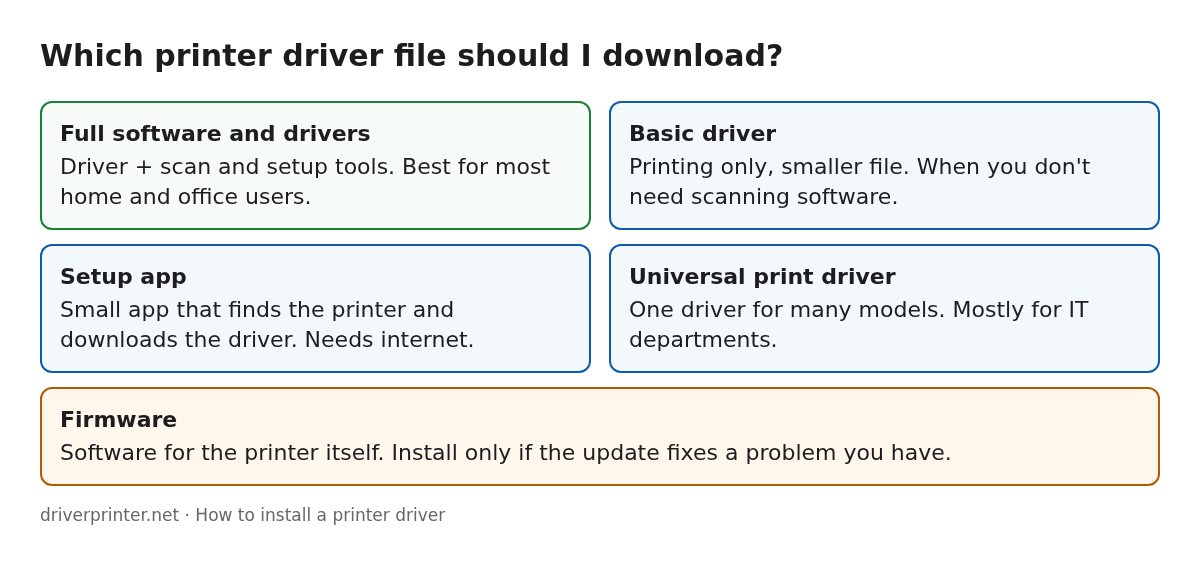
- Full software and drivers: the driver plus scan and setup tools. The best choice for most home and office users.
- Basic driver: printing only, smaller download. Good if you do not need scanning software.
- Setup app: a small app that finds your printer and downloads the right driver for you. It needs an internet connection.
- Universal print driver: one driver for many printer models, used mostly by IT departments.
- Firmware: software for the printer itself. Install it only if the update fixes a problem you have.
Install a printer driver on Windows 11 or 10
- Open the file you downloaded. If Windows asks whether to allow changes, choose Yes.
- Follow the installer. When it asks how the printer is connected, pick USB, network (Ethernet) or wireless.
- USB: connect the cable only when the installer asks you to. Plugging it in too early can make Windows install a basic driver first.
- Network or Wi-Fi: the printer and the computer must be on the same network. The installer searches for the printer and lists it.
- When the installer finishes, print a test page.
Add the printer manually
If the installer finishes but the printer is missing, open Settings, then Bluetooth & devices, then Printers & scanners. Select Add device. If the printer does not appear, choose “Add manually” and enter its IP address. You can print the IP address from the printer’s network or Wi-Fi report.
Get a driver through Windows Update
Windows can also download printer drivers. Open Settings, then Windows Update, then Advanced options, then Optional updates. If a driver for your printer is listed under driver updates, select it and install. This driver is usually basic and does not include scan tools.
Remove an old driver completely
A broken or older driver can block a new install. Remove the printer in Printers & scanners first. Then, on the same page, open “Print server properties”, go to the Drivers tab, select the old driver and choose Remove, then “Remove driver and driver package”. Restart the PC before installing the new driver.
Install a printer driver on a Mac
- Open the downloaded file (usually a .dmg or .zip) and run the installer inside it.
- Open System Settings, then Printers & Scanners.
- Click “Add Printer, Scanner or Fax” and select your printer from the list.
- Check that the “Use” menu shows your printer’s driver and not “Generic”. Then click Add.
Many newer printers also work with AirPrint, which needs no download. If your printer supports AirPrint, it appears in the list straight away. On Macs with Apple silicon, some older drivers need Rosetta; macOS offers to install it when you open such an installer.
Install on Linux
Most Linux systems already include printer drivers. For HP printers, HP’s open-source HPLIP package covers most models. On Ubuntu and Debian you can install it with sudo apt install hplip, then run hp-setup to add the printer. On other systems, add the printer in the printer settings, or install HPLIP from your distribution’s package manager.
If the install does not work
See our printer driver troubleshooting guide for the most common problems, such as “driver is unavailable”, error 0x00000709, or a printer that shows as offline.