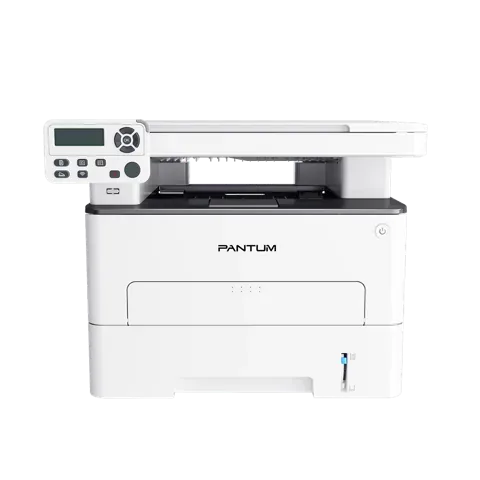
 The newest Pantum M6700 Plus driver is 1.2.27 for Windows, 1.0.18 for Mac, 1.1.167 for Linux, as listed on Pantum’s download page. Moreover, the same packages cover M7100 Plus. Besides, each button below downloads the file straight from Pantum’s own server.
Download the Pantum M6700 Plus & M7100 Plus driver
All files come from Pantum’s official download server. Therefore, because one driver serves every model listed below, choose the file by your computer’s system, not by the printer’s model suffix. Pantum’s own driver download page shows the same list.
Which files are shared and which are not
Pantum lists the M6700 Plus Series and the M7100 Plus Series as separate products, and each has its own Windows installer. The Mac and Linux packages are shared. Pantum’s list shows series names only, so we cannot name single models such as an M6700DW Plus here, and you should check that the label on your printer says “Plus”.
Pantum published all of these Plus files on 14 June 2023. The standard M6700 and M7100 drivers are newer, so do not install them on a Plus model, and do not install the Plus files on a standard one. For the standard printers, see the pages for the Pantum M6700DW and the Pantum M7102DW.
Supported operating systems
- Windows (both series): XP, 7, 8.1, 10 and 11, and Windows Server 2012, 2016, 2019, 2022 and 2025.
- macOS (shared driver): 10.13 up to 15.
- Linux (shared package): Ubuntu 18.04, 22.04 and 24.04.
The photo above shows the standard M6700DW, because Pantum publishes no separate picture of the Plus series.
Install the Pantum M6700 Plus & M7100 Plus driver
Pantum recommends its one-click installer for the Pantum M6700 Plus driver, the same program you start after downloading the file above. In the printer’s user guide the steps for a USB connection are:
- First, connect the printer to the computer with the USB cable and switch both on.
- Then start the installer: run the downloaded .exe on Windows, or open the .dmg and double-click the install tool on macOS. (The guide describes the CD that ships with the printer; the downloaded file does the same job.)
- Next, accept the license agreement and privacy policy and click Next. On macOS, enter your computer password when asked.
- After that, choose One-click installation under USB and wait. However, Pantum notes that the time depends on your computer.
- Finally, when it finishes, click Print & Test Page. If the test page prints, the driver works.
However, if the one-click installer fails, start it again and choose More setup methods at the bottom of the window, then select your language, the printer model and Connect via USB.
Uninstall the Pantum M6700 Plus & M7100 Plus driver
On Windows, open the Start menu, then Pantum, then your printer’s entry, choose Uninstall and restart the computer afterwards. On macOS, however, open Go, Applications, Pantum, Utilities and run Pantum Un-install Tool.
Finally, for installer errors on Windows, see the driver installation guide for Windows 11 and the driver installation error guide.
Last checked: Nov 16, 2026. Pantum is a trademark of Zhuhai Pantum Electronics Co., Ltd. This site is not affiliated with Pantum.