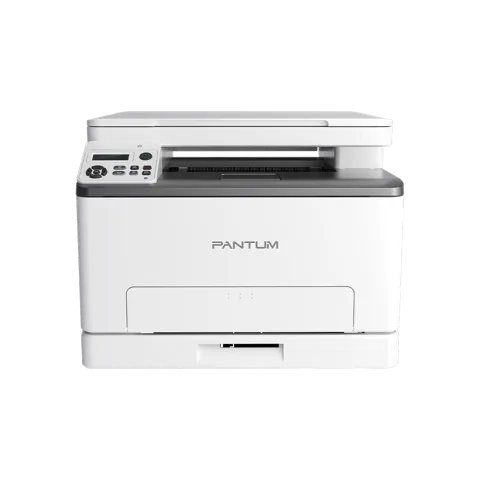
 The newest Pantum CM1100DN driver is 2.0.49 for Windows, 1.1.5 for Mac, 1.1.100-1 for Linux, as listed on Pantum’s download page. Moreover, the same packages cover CM1100ADN. Besides, each button below downloads the file straight from Pantum’s own server.
Download the Pantum CM1100DN & CM1100ADN driver
Linux packages for other distributions
All files come from Pantum’s official download server. Therefore, because one driver serves every model listed below, choose the file by your computer’s system, not by the printer’s model suffix. Pantum’s own driver download page shows the same list.
Models that share this driver
The CM1100DN and CM1100ADN use the same files as the other models of this printer family. Each of them has its own page.
Pantum CM1100DN & CM1100ADN user manual
Pantum's CM1100 Series User Manual (English PDF, 3.5MB) is the source for the setup and troubleshooting steps on this page: open the manual.
Pantum CM1100DN specifications
Differences between the models
Only these specifications differ between the models on Pantum’s product pages:
General (every model)
More general (every model)
Pantum CM1100DN driver: getting an Address onto Your Network
The printer asks your network for an address by itself, because DHCP is switched on by default. Plug in a network cable, finish the startup preparation, and wait. Depending on your network, it can take several minutes. Print the network setup page or look at the control panel to read the address.
If no address shows up, check your network and try again after a few minutes. When the DHCP server fails to assign one, the printer gives itself a link-local address starting with 169.254. You can also enter an address by hand, either at the control panel or through the embedded Web server.
Getting Better Results from Copy Settings
Press Copy on the control panel, choose your settings, then press Copy again to start. Luminosity stays as you set it until you change it. Image Quality, Zoom, N-in-1, Clone, Poster, Collate and Duplex Copy go back to default after the job, when you switch using the panel button, or after a restart.
Multipage puts two or four pages on one sheet, from the ADF or the glass, but it cannot be combined with resizing. Collated copies need the ADF. For manual duplex, load the original front up, top edge first, choose Duplex to Duplex, copy, put the sheet back without flipping or rotating, and press Start.
Pantum CM1100DN driver: sending Scans to Email, FTP or USB
To email a scan, make sure the printer and computer are on the same network, set up the SMTP client, and fill in the address book. Load the original, choose Scan-Scan to Email on the panel, pick your settings and press Scan. The mail server then delivers the file.
Group emails use a group name and members that you set on the webpage. FTP works similarly: configure the FTP address book, then choose Scan-Scan to FTP. For USB, insert a drive in the front port and choose Scan-Scan USB. Files land in a PantumScan folder as PDF, TIFF or JPEG, on FAT or FAT32 drives (Windows) or MS-DOS (FAT) (macOS).
Changing Supplies and Moving the Printer Safely
To change the toner cartridge, remove the paper tray first if it is unfolded. Open the front cover and push it down hard, pull out the cartridge tray, take out the used cartridge, unpack the new one and insert it, then slide the tray back in and close the cover. Keep the cartridge bottom away from light and fingers.
Keep the waste toner bottle upright when swapping it, to avoid leaks. The paper tray is replaced by removing the old one and inserting a new one. Before moving the printer, close all covers and trays, switch off, unplug, remove cables, keep it upright, lift by the handholds, and use two people above 18 kg.
Pantum CM1100DN driver: printing on both sides of the page
The printer can print on both sides of plain paper. Supported sizes are A4, Letter, Legal, Folio and Oficio. Poster printing cannot be combined with duplex. Some paper media are unsuitable for duplex, and forcing it on them may damage the printer, so check your paper first.
To print on both sides, open the document, choose Print from the File menu, pick your printer and click Printer Properties. Under the Basics tab, select Duplex Print and choose Long Edge or Short Edge. Click OK, then Print. If output looks mottled or blotchy, adjust transfer print parameters in Printer Setup, under Other Settings, on USB-installed printers.
ID card copies and control panel basics
On the touch screen, open the ID copy menu to copy an ID card. A separate Bill copy menu covers bills. The status bar shows what the printer is doing now, and the Setting button opens the menu settings. The status icon shows supplies information when ready, or error details when something is wrong.
Touch screen buttons: the radio button selects or deletes an item, the up and down arrows scroll, the acceptance button saves a setting and the cancel button drops a selection. The power indicator tells you more: off means powered off, steady on means awake (ready, printing or processing), and blinking means sleep.
Pantum CM1100DN driver: noise level and power draw
On models that have a mute mode, Pantum rates noise at 47 dB(A) or less while it is active. That figure is an upper limit, not an average. Separately, the printer enters network standby after 1 minute.
Power figures are maximums: standby up to 10 W, sleep up to 1 W, shutdown up to 0.15 W. Network standby is up to 4 W with wireless and up to 2 W without it. If you want to save energy, those numbers show that switching the printer off uses far less than leaving it idle.
Copying bills and scanning from a computer
To copy a bill or receipt, tap Bill copy on the control panel, check the copy settings, then press Copy. The settings menu lets you change related options to get a better result. Scanning needs the driver installed on your computer.
For a pull scan on Windows, double-click Pantum Scan Application, choose your options in the right-hand list and click Scan at bottom right. It works over USB, wired or wireless connections. Output formats include BMP, JPG, TIF, PDF, PNG and OFD. Text recognition for DOCX, XLS, XLSX, PPTX, TXT and searchable PDF needs OCR software.
The same printer family has more pages with the same files and other manual topics: CM1100ADW and CM1100DW.
Install the Pantum CM1100DN & CM1100ADN driver
Pantum recommends its one-click installer for the Pantum CM1100DN driver, the same program you start after downloading the file above. In the printer’s user guide the steps for a USB connection are:
- First, connect the printer to the computer with the USB cable and switch both on.
- Then start the installer: run the downloaded .exe on Windows, or open the .dmg and double-click the install tool on macOS. (The guide describes the CD that ships with the printer; the downloaded file does the same job.)
- Next, accept the license agreement and privacy policy and click Next. On macOS, enter your computer password when asked.
- After that, choose One-click installation under USB and wait. However, Pantum notes that the time depends on your computer.
- Finally, when it finishes, click Print & Test Page. If the test page prints, the driver works.
However, if the one-click installer fails, start it again and choose More setup methods at the bottom of the window, then select your language, the printer model and Connect via USB.
Uninstall the Pantum CM1100DN & CM1100ADN driver
On Windows, open the Start menu, then Pantum, then your printer’s entry, choose Uninstall and restart the computer afterwards. On macOS, however, open Go, Applications, Pantum, Utilities and run Pantum Un-install Tool.
Fix common Pantum CM1100DN & CM1100ADN problems
If the Pantum CM1100DN driver installs but the printer still misbehaves, try these fixes. Besides, these causes and fixes come from the troubleshooting chapter of the Pantum user guide.
Printer, toner and paper problems
Print quality problems
Finally, for installer errors on Windows, see the driver installation guide for Windows 11 and the driver installation error guide.
Last checked: Nov 19, 2026. Pantum is a trademark of Zhuhai Pantum Electronics Co., Ltd. This site is not affiliated with Pantum.