Advertisement
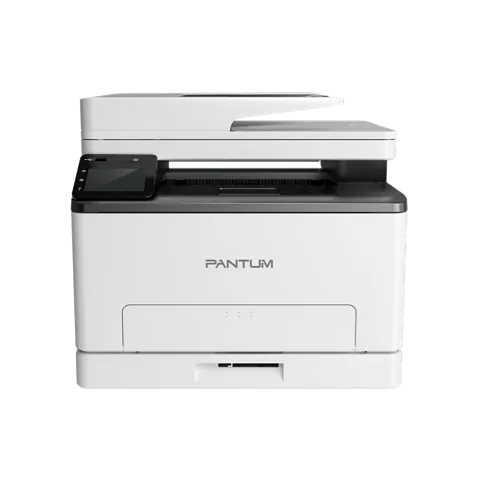 The newest Pantum CM1100ADW driver is 2.0.49 for Windows, 1.1.5 for Mac, 1.1.100-1 for Linux, as listed on Pantum’s download page. Moreover, the same packages cover CM1100ADW, CM1100DW, CM1100DN, CM1100ADN. Besides, each button below downloads the file straight from Pantum’s own server.
Download the Pantum CM1100ADW driver
| Driver | Version | Size | |
|---|---|---|---|
| Pantum CM1100 Series Windows DriverWindows 7, 11, 10, 8.1, 8; Windows Server 2012, 2016, 2019, 2022, 2003, 2008, 2025 | V2.0.49 | 52.05MB | Download for Windows |
| Pantum CM1100 Series Mac DrivermacOS 10.10, 10.11, 10.12, 10.13, 10.14, 10.15, 11, 12, 13, 14, 15, 26 | V1.1.5 | 19.52MB | Download for Mac |
| Pantum CM1100 Series Linux DriverUbuntu 16.04, 18.04, 20.04, 22.04 | V1.1.100-1 | 8.97MB | Download for Linux |
Linux packages for other distributions
| Package | Size | |
|---|---|---|
| Pantum CM1100ADW Astra Linux Special Edition Drive | 15.42MB | Download |
All files come from Pantum’s official download server. Therefore, because one driver serves every model listed below, choose the file by your computer’s system, not by the printer’s model suffix. Pantum’s own driver download page shows the same list.
Models that share this driver
| Model | Print speed | Connection | Functions |
|---|---|---|---|
| CM1100ADW | 18ppm | USB+NET+WIFI | Print、Copy、Scan |
| CM1100DW | 18ppm | USB+NET+WIFI | Print、Copy、Scan |
| CM1100DN | 18ppm | USB+NET | Print、Copy、Scan |
| CM1100ADN | 18ppm | USB+NET | Print、Copy、Scan |
The only difference between these models in Pantum’s specifications is the connection: CM1100ADW, CM1100DW add Wi-Fi to USB, while CM1100DN, CM1100ADN connect by USB only. The driver is the same for both, so pick the file for your operating system and nothing else.
Pantum CM1100ADW user manual
Pantum's CM1100 Series User Manual (English PDF, 3.5MB) is the source for the setup and troubleshooting steps on this page: open the manual.
Pantum CM1100ADW specifications
Differences between the models
Only these specifications differ between the models on Pantum’s product pages:
| CM1100ADW | CM1100DW | CM1100DN | CM1100ADN | |
|---|---|---|---|---|
| Print speed(A4/LTR) | 18ppm(A4); 19ppm(LTR) | 18ppm(A4); 19ppm(LTR) | 18ppm(A4) / 19ppm(LTR) | 18ppm(A4); 19ppm(LTR) |
| Control panel | 3.5 inch touch screen | – | 2-line LCD | 3.5 inch touch screen |
| Direct USB | YES | – | – | YES |
| Standard Ports | USB2.0(High Speed) IEEE802.3 10 /100Base-Tx IEEE802.11b/g/n(support WPS) | USB2.0(High Speed) IEEE802.3 10 /100Base-Tx IEEE802.11b/g/n(support WPS) | USB2.0(High Speed) IEEE802.3 10 /100Base-Tx | USB2.0(High Speed) IEEE802.3 10 /100Base-Tx |
| First copy out time | FB:16s ADF:18s | FB:16s | FB:16s | FB:16s ADF:18s |
| Copy function | ID copy Receipt copy N-up copy Clone copy poster copy | ID copy Receipt copy N-up copy Clone copy poster copy | ID copy; Receipt copy; N-up copy; Clone copy; poster copy | ID copy Receipt copy N-up copy Clone copy poster copy |
| Scanner type | FB+ADF | FB | FB | FB+ADF |
| ADF scan speed | 18ppm (300*300 dpi) | – | – | 18ppm (300*300 dpi) |
| Scan to | PC/Email/FTP/USB flash disk /ios/Android | PC/Email/FTP/ios/Android | PC/Email/FTP | PC/Email/FTP/ USB flash disk |
| ADF capacity | 50Pages | – | – | 50Pages |
| Scan to USB | Yes | – | – | Yes |
| Printer Dimensions(W×D×H) | 401*411*358mm | 401*411*314mm | 401*411*314mm | 401*411*358mm |
| Weight(with cartridge ) | 19.4kg | 18.5kg | 18.5kg | 19.4kg |
| Package Dimensions(W×D×H) | 535*555*456mm | 535*555*412mm | 535*555*412mm | 535*555*456mm |
| Total Weight(Include Printer ,cartridge and package ) | 22.1kg | 21.2kg | 21.2kg | 22.1kg |
| Noise Level | print/scan≤52dBA copy≤54dBA Mute≤47dBA standby≤30dBA | print/scan≤52dBA; copy≤54dBA; Mute≤47dBA; standby≤30dBA | print/scan≤52dBA; copy≤54dBA; Mute≤47dBA; standby≤30dBA | print/scan≤52dBA copy≤54dBA Mute≤47dBA standby≤30dBA |
| Power consumption | Print Average:≤380W Standby: ≤10W Dormant:≤1W Off:≤0.15W | Print Average:≤380W; Standby: ≤10W; Dormant:≤1W; Off:≤0.15W | Print Average:≤380W; Standby: ≤10W; Dormant:≤1W; Off:≤0.15W | Print Average:≤380W Standby: ≤10W Dormant:≤1W Off:≤0.15W |
| Consumable type | One-piece | One-piece | One-piece | – |
More differences between the models
| CM1100ADW | CM1100DW | CM1100DN | CM1100ADN | |
|---|---|---|---|---|
| Cartridge model and yiled | ①CTL-1100K:1000Pages, CTL-1100C/CTL-1100M/CTL-1100Y:700Pages ②CTL-1100HK:2000Pages, CTL-1100HC/CTL-1100HM/CTL-1100HY:1500Pages ③CTL-1100XK:3000Pages, CTL-1100XC/CTL-1100XM/CTL-1100XY:2300Pages | ①CTL-1100K:1000Pages CTL-1100C/CTL-1100M/CTL-1100Y:700Pages ②CTL-1100HK:2000Pages CTL-1100HC/CTL-1100HM/CTL-1100HY:1500Pages ③CTL-1100XK:3000Pages CTL-1100XC/CTL-1100XM/CTL-1100XY:2300Pages | ①CTL-1100K:1000Pages CTL-1100C/CTL-1100M/CTL-1100Y:700Pages ②CTL-1100HK:2000Pages CTL-1100HC/CTL-1100HM/CTL-1100HY:1500Pages ③CTL-1100XK:3000Pages CTL-1100XC/CTL-1100XM/CTL-1100XY:2300Pages | ①CTL-1100K:1000Pages, CTL-1100C/CTL-1100M/CTL-1100Y:700Pages ②CTL-1100HK:2000Pages, CTL-1100HC/CTL-1100HM/CTL-1100HY:1500Pages ③CTL-1100XK:3000Pages, CTL-1100XC/CTL-1100XM/CTL-1100XY:2300Pages |
| Consumable Type | – | – | – | One-piece |
General (every model)
| Duplex Print speed | 6ppm(A4) /6ppm(LTR) |
|---|---|
| First print out time | Mono:10s; Color:11s |
| Printer language | PCL6/PS3 |
| Processor speed | 1GHz |
| Memory | 1GB |
| Recommended monthly page volume | 300-1500 Pages |
| Maximun Monthly duty cycle | 30000 Pages |
| Note | Apple, AirPrint Mac and macOS are trademarks of Apple lnc., registered in the U.S and other countries.Use of the Works with Apple badge means that an accessory has been designed to work specifically with the technology identified in the badge and has been certified by the developer to meet Apple performance standards.; Mopria makes it easier to print and scan from your Android and Windows.; For Android, Mopria™ Print Service and Mopria Scan are available for installation in the Google Play™ store.If you want to get more information, please visit https://www.mopria.org; The Mopria™ wordmark and the Mopria™ Logo are registered and/or unregistered trademarks of Mopria Alliance, Inc. in the United States and other countries. Unauthorized use is strictly prohibited. |
| Other printer function | Watermark Printing Poster Printing Multi-page in one Printing Brochure Printing One step driver installation |
| Mobile print | Airprint; Mopria™ Print Service; Pantum App |
| Duplex Printing | Auto |
| Paper Input Capacity | 250 Pages |
| Multipurpose tray | 1 Page |
| Paper output capacity | 100 Pages |
| Media types | Plain:70~105g/m² (Including 105g/m²) Thin:60~70g/m² (Not including 70g/m²) Thick:105~200g/m² (Not including 105g/m²) Transparency/Cardstock/Label/Envelope |
More general (every model)
| Media sizes | A4, Letter, Legal, Folio, Oficio, JIS B5, ISO B5, Executive, Statement, A5, Big 16K, 16K, Big 32K, 32K, A6, No.10 Env, Monarch Env, DL Env(Envelope No. 5), C5 Env(Envelope No. 7), C6 Env, Yougata4, Younaga3, Nagagata3, Yougata2, ZL (Envelope No. 6), Postcard, B6, Japanese Postcard Custom: minimum 96x148mm~maximum 216x356mm |
|---|---|
| Media weights | Standrad tray:60~200g/㎡ Multipurpose tray:60~105g/㎡ |
| Copy color | color/black |
| Copy speed | 18ppm |
| Max.copy page | 99Pages |
| Copy reduce / enlarge settings | 25%-400% |
| Scan mode | Color, Gray, Monochrome (PC only) |
| Scan technology | CIS |
| Format | JPEG, TIFF, PDF |
| Color scaning | Yes |
| Power | AC 110-127V,50Hz/60Hz,7A AC 220-240V,50Hz/60Hz,3.5A |
| Print environment | Operating temperature:10-32℃; Relative humidity:20% ~ 80%RH; Altitude:≤2000m |
| Starter cartridge | CTL-1100K:1000Pages CTL-1100C/CTL-1100M/CTL-1100Y:700Pages |
| Waste powder bottle | CWT-1100:15000Pages |
Install the Pantum CM1100ADW driver
Pantum recommends its one-click installer for the Pantum CM1100ADW driver, the same program you start after downloading the file above. In the printer’s user guide the steps for a USB connection are:
- First, connect the printer to the computer with the USB cable and switch both on.
- Then start the installer: run the downloaded .exe on Windows, or open the .dmg and double-click the install tool on macOS. (The guide describes the CD that ships with the printer; the downloaded file does the same job.)
- Next, accept the license agreement and privacy policy and click Next. On macOS, enter your computer password when asked.
- After that, choose One-click installation under USB and wait. However, Pantum notes that the time depends on your computer.
- Finally, when it finishes, click Print & Test Page. If the test page prints, the driver works.
However, if the one-click installer fails, start it again and choose More setup methods at the bottom of the window, then select your language, the printer model and Connect via USB.
Connect CM1100ADW, CM1100DW to Wi-Fi with WPS
Meanwhile, the Wi-Fi models can join your network without a cable if your router supports WPS:
- First, switch on the printer and the router, and make sure the printer is ready. Press any key to wake it from sleep mode.
- Then hold the Wi-Fi key on the printer’s control panel for more than two seconds, until the blue Wi-Fi indicator blinks.
- After that, within two minutes, press the WPS button on the router.
- Finally, the blue indicator blinks while connecting and stays on once the printer is connected. If nothing connects within two minutes, the printer returns to ready and you repeat steps 2 and 3.
However, WPS only joins the network; to print wirelessly you still install the driver afterwards.
Uninstall the Pantum CM1100ADW driver
On Windows, open the Start menu, then Pantum, then your printer’s entry, choose Uninstall and restart the computer afterwards. On macOS, however, open Go, Applications, Pantum, Utilities and run Pantum Un-install Tool.
Fix common Pantum CM1100ADW problems
If the Pantum CM1100ADW driver installs but the printer still misbehaves, try these fixes. Besides, these causes and fixes come from the troubleshooting chapter of the Pantum user guide.
Printer, toner and paper problems
| Problem | Likely cause | What to do |
|---|---|---|
| Paper does not feed or several sheets feed together | Paper loaded wrongly, damp or out of specification, too much paper in the tray, dirty feed roller | Load the paper correctly, remove excess sheets, fan the stack to separate the sheets, use dry paper within specification and clean the feed roller. Use the manual feeder for special media. |
Print quality problems
| Problem | Likely cause | What to do |
|---|---|---|
| Light or whitish print | Toner is low, damp paper, resolution set too low in the program or a damaged cartridge | Check the toner, use paper within specification, raise the print resolution in the program and replace a damaged cartridge. |
| Toner spots, white spots or toner that rubs off | Dirty feed channel or laser reflective glass, unsuitable paper | Clean the feed channel and the reflective glass at the back of the printer and use paper within specification. |
| Black vertical stripes or gray background | Dirty laser glass, feed channel or cartridge | Clean the laser glass and feed channel, and clean or replace the toner cartridge. |
Wi-Fi problems on CM1100ADW, CM1100DW
- Printer not found: first, check that the computer, router and printer are on, that the USB cable is not the only connection in use and that the model has Wi-Fi.
- Network name (SSID) not found: make sure the router is switched on and check its SSID. After any router setting change you must set the printer’s wireless network up again.
- Connection fails: instead, check the security mode and password, move the printer closer to the router, or restart both and repeat the setup.
- Same network but still not found: in that case, a firewall may block the communication, so try again with it switched off. Then print the network configuration page to read the printer’s IP address, then run
pingwith that address in the Command Prompt. If replies come back, computer and printer are on the same network.
Finally, for installer errors on Windows, see the driver installation guide for Windows 11 and the driver installation error guide.
Last checked: Nov 14, 2026. Pantum is a trademark of Zhuhai Pantum Electronics Co., Ltd. This site is not affiliated with Pantum.
Advertisement