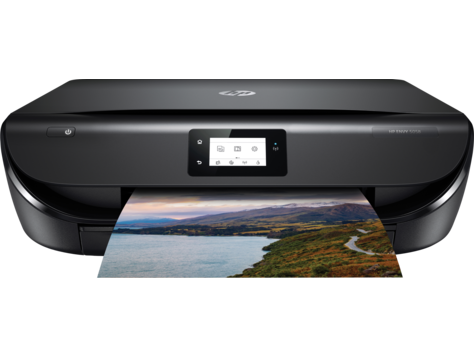
HP Thermal Inkjet technology puts ink on the page, and this model gets its first black page out in as fast as 16 seconds. The HP ENVY 5050 All-in-One prints, copies, scans and handles photos. With a recommended monthly volume of 100 to 400 pages, it suits home users and light everyday printing.
HP ENVY 5000 All-in-One Print and Scan Full Driver Solution
Win 11Win 10 64-bitWin 7 64-bit
On Windows, download the HP ENVY 5000 All-in-One Print and Scan Full Driver Solution (134.0 MB). On a Mac, download Install HP Easy Start (6.3 MB).
Quick install: download the recommended file above, run it, and choose Wi-Fi or USB when the installer asks, then print a test page. Full steps
HP ENVY 5050 All-in-One driver for Windows
Full software and drivers
Win 11Win 10 64-bitWin 7 64-bit
Details
- File name
Full_Webpack-44.11.2778-EN5000_Full_Webpack.exe- MD5 checksum (from HP)
155a9dcca075882cf57d3994bd4ec754- Software ID (HP)
- oj-267500-4 · verify on HP
Setup apps
Win 11Win 10 64-bitWin 7 64-bit
Details
- File name
HPEasyStart_17_6_15.exe- MD5 checksum (from HP)
d3c5840776dec9f1f7e1ba23499a15e8- Software ID (HP)
- mp-366488-3 · verify on HP
Win 11Win 10 64-bit
Details
- Software ID (HP)
- mp-366135-1 · verify on HP
Firmware
Win 11Win 10 64-bitWin 7 64-bit
Details
- File name
EN5000_2421A.exe- MD5 checksum (from HP)
964e475ed6efde03a4e5bc55d419e8e0- Software ID (HP)
- mp-215235-15 · verify on HP
HP ENVY 5050 All-in-One driver for macOS
Setup apps
macOS 26macOS 15
Details
- File name
HP_Easy_Start.app.zip- MD5 checksum (from HP)
19c1a5f786f5f93f9f778ad71ee444a3- Software ID (HP)
- mp-166618-27 · verify on HP
macOS 26macOS 15macOS 13
Details
- Software ID (HP)
- mp-351535-1 · verify on HP
Firmware
macOS 13
Details
- File name
EN5000_2421A.dmg- MD5 checksum (from HP)
a3750f9185d7c61873d4ec24c879e60e- Software ID (HP)
- mp-228712-12 · verify on HP
All files come straight from HP (ftp.hp.com). We checked them against HP’s list on Oct 25, 2026. Systems checked: Win 11, Win 10 64-bit, Win 7 64-bit, macOS 26, macOS 15, macOS 13, Linux. Older systems may have more files on HP’s page for this model.
HP ENVY 5050 All-in-One driver support by operating system
64-bit
64-bit
Which HP ENVY 5050 All-in-One driver should I choose?
HP offers three kinds of download here. Full software and drivers installs the driver plus HP's complete software set, and it is the 134.0 MB Windows pick. Setup apps are smaller, at 26.5 MB on Windows and 6.3 MB on Mac, and they guide you through setup. The Windows setup app needs an internet connection for driver installation. Firmware updates change the printer's own software, so install one only to fix a problem HP's firmware notes describe.
Automatic duplex printing is standard, and the input tray holds up to 100 sheets. Connections include Hi-Speed USB 2.0, dual band Wi-Fi 802.11n and Wi-Fi Direct. The printer has no automatic paper sensor, so load the right paper size yourself.
How to install the HP ENVY 5050 All-in-One driver
- Download the Full Driver Solution (134.0 MB) from the list on this page.
- Run the downloaded file and let the installer start.
- Choose the connection type the installer offers: USB 2.0 cable or Wi-Fi.
- Pick Wi-Fi if you want wireless printing; the printer supports 802.11n on dual band.
- Print a test page once the installer finishes.
- On a Mac, download Install HP Easy Start (6.3 MB) and run it instead.
Adding the printer by hand or installing on Linux? See our printer driver install guide.
Models supported by this HP ENVY 5050 driver page
These printers use the same driver files, so every download on this page fits each of them.
Hardware problems on the HP ENVY 5050 All-in-One
If the printer shuts down unexpectedly, start with the power. Check that the power cord is firmly connected to an outlet that works. Also, if printing will not begin, look at the cartridge access door, which must be closed. The HP Print and Scan Doctor diagnoses and fixes printing, scanning and copying problems, but only in some languages.
Alignment can fail when colored paper is in the input tray, so load unused plain white paper and try again. If it keeps failing, the printhead may need cleaning, or the sensor may be defective. For a general printer failure, turn the printer off and on. If that does not help, contact HP.
Cleaning the printhead from Windows software
Cleaning uses ink, so do it only when you need to. The process takes a few minutes, and the printer may make some noise. Before you start, load unused letter or A4 plain white paper in the input tray. Then open the HP printer software on your computer.
In the software, go to Print & Scan, then click Maintain Your Printer in the Print section to reach the printer toolbox. On the Device Services tab, click Clean Printheads and follow the onscreen instructions. If the problem remains, contact HP support through www.support.hp.com and choose your country or region if prompted.
Better print quality on macOS and OS X
Use original HP cartridges, and check the estimated ink levels in case a cartridge is running low. Then look at your paper. High quality HP paper or ColorLok papers work best, and HP Advanced Photo Paper suits images. Also make sure the paper is flat and that the Print dialog shows the right paper type and print quality.
Store specialty paper in its original packaging, inside a resealable bag, flat, in a cool, dry place. Take out only what you will print right away, and return unused photo paper to the bag so it does not curl. Then align the printhead and print a test page from HP Utility, found in the HP folder inside Applications.
Basic troubleshooting steps for the ENVY 5000 series
Make sure you have installed the latest HP Smart app or printer software from 123.hp.com. Then, if you connect with a USB cable, check that the cable is seated securely and that the printer is set as the default printer. These checks apply across the whole series.
For a wireless connection, the printer and the device you print from must be on the same network. Visit www.hp.com/go/wifihelp for more help with that. However, Windows users have another option: HP Diagnostic Tools at www.hp.com/go/tools, which can fix common printer problems.
Getting help for your HP ENVY 5050 All-in-One
The support site at www.support.hp.com offers several kinds of help. You can download drivers, updates and manuals, browse the support forums for answers or post your own question, and use online troubleshooting tools that detect your printer and suggest fixes. Registering at www.register.hp.com can bring quicker service and support alerts.
To reach an agent, you can chat online or call. These options are free for in-warranty customers, while out-of-warranty help may cost a fee. Have ready the product name, the product number inside the cartridge access door, and the serial number on the back or bottom of the printer. Extended service plans for the series cost extra.
HP ENVY 5050 All-in-One specifications
Source: HP product specifications for the HP ENVY 5050 All-in-One Printer.
Each file lists the MD5 checksum HP publishes. Our guide to checking a driver download shows how to compare it. If an HP link is down, try the Microsoft Update Catalog search for the HP ENVY 5050 All-in-One.
HP ENVY 5050 All-in-One driver troubleshooting
The printer shows as offline or the computer cannot find it over Wi-Fi
Restart the printer and your router, then try again. Make sure the computer uses the same network as the printer. Connecting a USB cable lets you keep printing meanwhile.
Printouts look faded, streaky or have gaps
Check the ink levels first and replace any cartridge that runs low. Reseat the cartridges, then print again. Make sure the paper in the tray matches the size you chose.
Easy Start will not run on a Mac with macOS 26
Download Install HP Easy Start version 2.16.7.260722. HP added macOS 26 support in that release. Older installers may not work on the newest macOS version.
For “driver is unavailable”, offline printers and stuck print jobs, see our printer driver troubleshooting guide.
HP ENVY 5050 All-in-One driver FAQ
Which Windows versions does the full driver support?
The Full Driver Solution, version 44.11.2778, supports Windows 11, Windows 10 64-bit and Windows 7 64-bit. The file is 134.0 MB.
Which macOS versions does HP Easy Start support?
Install HP Easy Start, version 2.16.7.260722, supports macOS 26 and macOS 15. The download is 6.3 MB.
Does the printer print on both sides automatically?
Yes. HP lists automatic duplex printing as standard. The input tray holds up to 100 sheets, and the output tray holds 25.
Which firmware version does HP offer, and how large is it?
HP offers firmware version 003.2421A, dated Jul 09, 2024. It is 41.6 MB for Windows and 44.9 MB for macOS 13.
Drivers for similar HP printers
Owners of related models can find the matching downloads here: HP ENVY 5010 All-in-One driver, HP ENVY 5012 All-in-One driver, HP ENVY 5014 All-in-One driver, HP ENVY 5020 All-in-One driver, HP ENVY 5030 All-in-One driver, HP ENVY 5032 All-in-One driver.
Last checked: Oct 25, 2026. HP and HP ENVY 5050 All-in-One are trademarks of HP Inc. This site is not affiliated with HP.