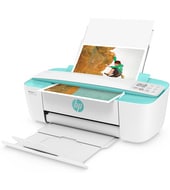
You can connect this printer by USB cable or over built-in Wi-Fi 802.11b/g/n, so setup needs either a cable or your wireless network. The HP DeskJet 3755 All-in-One prints, copies and scans. With a recommended 50 to 200 pages a month and a 60-sheet input tray, it suits home use.
HP DeskJet and Ink Advantage 3700 All-in-One Print and Scan Driver and Accessories
Win 11Win 10 64-bitWin 7 64-bit
On Windows, download HP DeskJet and Ink Advantage 3700 All-in-One Print and Scan Driver and Accessories (102.6 MB). On a Mac, download Install HP Easy Start (6.3 MB).
Quick install: download the recommended file above, run it, and choose Wi-Fi or USB when the installer asks, then print a test page. Full steps
HP DeskJet 3755 All-in-One driver for Windows
Full software and drivers
Win 11Win 10 64-bitWin 7 64-bit
Details
- File name
Full_Webpack-40.16.1234-DJ3700_Full_Webpack.exe- MD5 checksum (from HP)
a64f64a599561e71c224398eda8410df- Software ID (HP)
- al-163859-7 · verify on HP
Setup apps
Win 11Win 10 64-bitWin 7 64-bit
Details
- File name
HPEasyStart_17_6_15.exe- MD5 checksum (from HP)
d3c5840776dec9f1f7e1ba23499a15e8- Software ID (HP)
- mp-366488-3 · verify on HP
Win 11Win 10 64-bit
Details
- Software ID (HP)
- mp-366135-1 · verify on HP
Firmware
Win 11Win 10 64-bitWin 7 64-bit
Details
- File name
DJ3700_2218A.exe- MD5 checksum (from HP)
753c33105bc9259912c3e12852483914- Software ID (HP)
- al-215329-4 · verify on HP
Utilities and other software
Win 11Win 10 64-bitWin 7 64-bit
Details
- File name
HPEasyStart-13.6.5-DJ3700_40_16_1234_1_Webpack.exe- MD5 checksum (from HP)
7cab4ab748df36b4f7bc7fc4fe0b5521- Software ID (HP)
- al-260049-4 · verify on HP
Win 11Win 10 64-bitWin 7 64-bit
Details
- File name
Basic_Webpack_x64-40.16.1234-DJ3700_Basicx64_Webpack.exe- MD5 checksum (from HP)
e4cb71f3feb7fe167792bf52808dd957- Software ID (HP)
- al-242680-4 · verify on HP
Win 10 64-bitWin 7 64-bit
Details
- File name
HPEPrintAppSetupx64.exe- MD5 checksum (from HP)
f47f746e9f3a0bf359c06d3a4d889b43- Software ID (HP)
- lj-166432-4 · verify on HP
HP DeskJet 3755 All-in-One driver for macOS
macOS 26macOS 15
Details
- File name
HP_Easy_Start.app.zip- MD5 checksum (from HP)
19c1a5f786f5f93f9f778ad71ee444a3- Software ID (HP)
- mp-166618-27 · verify on HP
macOS 26macOS 15macOS 13
Details
- Software ID (HP)
- mp-351535-1 · verify on HP
HP DeskJet 3755 All-in-One driver for Linux
Linux
Details
- Software ID (HP)
- mp-54524-1 · verify on HP
All files come straight from HP (ftp.hp.com). We checked them against HP’s list on Oct 25, 2026. Systems checked: Win 11, Win 10 64-bit, Win 7 64-bit, macOS 26, macOS 15, macOS 13, Linux. Older systems may have more files on HP’s page for this model.
HP DeskJet 3755 All-in-One driver support by operating system
64-bit
64-bit
Which HP DeskJet 3755 All-in-One driver should I choose?
Full software and drivers (102.6 MB) installs the driver and accessories, and suits most Windows users. Setup app downloads, such as HP Easy Start at 26.5 MB, guide you through setup and need an internet connection for drivers. Utility downloads cover special cases: the offline EasyStart package (173.5 MB), the IT Professional package (59.5 MB) and HP ePrint software (31.2 MB). Firmware (4.3 MB) updates the printer itself. Install it only to fix a specific problem.
Duplex printing is manual, and the driver supports it. The input tray holds 60 sheets and the output tray holds 25. Media from 3 x 5 to 8.5 x 14 inches works, and Apple AirPrint and Wi-Fi Direct cover mobile printing.
How to install the HP DeskJet 3755 All-in-One driver
- Download the 102.6 MB Print and Scan Driver and Accessories package from this page.
- Run the downloaded file and follow the installer screens.
- Connect the printer by USB cable, or join it to your Wi-Fi network, depending on how you plan to print.
- Print a test page from any app to confirm the driver works.
- On a Mac, download Install HP Easy Start (6.3 MB) instead and follow its prompts.
Adding the printer by hand or installing on Linux? See our printer driver install guide.
Models supported by this HP DeskJet 3755 driver page
These printers use the same driver files, so every download on this page fits each of them.
Connecting wirelessly with HP printer software
Before you start, gather a few things. The printer works only on a 2.4GHz network, so check that your router offers one. Also, you will need a computer on that same wireless network, the network name (SSID), and a WEP key or WPA passphrase if your network uses one.
On Windows, install the software from 123.hp.com if you haven't yet, and choose Wireless when asked. A USB cable may be needed briefly, but wait for the prompt before plugging it in. Already installed? Open Tools, then Device Setup & Software, then Connect a new device. When it works, the blue Wireless light stops blinking and stays on.
Printing photos on the HP DeskJet 3755 All-in-One
Load photo paper in the input tray and open the output tray before you print. Then choose Print in your software, confirm the printer is selected, and open the Properties dialog. Depending on the program, that button may be named Options, Printer Setup, Printer Properties, Printer, or Preferences.
On Windows, set options on the Printing Shortcut tab. However, if you change the paper size, make sure matching paper is loaded. On a Mac, choose Paper Type/Quality, set the photo paper type, and pick the best quality or maximum dpi. Afterward, remove unused photo paper and store it so it does not curl, since curling can lower print quality.
What HP Web Services and ePrint offer
Web Services give the printer web-enabled features that let you reach the Internet, get documents and print them with less hassle, all without a computer. However, the printer must be connected to the Internet over a wireless connection. A printer connected with a USB cable cannot use these web features.
HP ePrint is a free HP service for printing from any location. When you enable Web Services, the printer gets its own email address, and you simply email a document to it. No special drivers or software are needed. With an HP Connected account, where available, you can also check job status, manage the queue and control who may print.
Switching from USB to a wireless network
If you set up the printer with a USB cable, you can move it to wireless later. You need an 802.11b/g/n network with a wireless router or access point. Besides that, remember the printer supports only 2.4GHz. Keep the USB cable attached until you are prompted to remove it.
Your computer must already be on the wireless network you want to use. In Windows, open the HP printer software, click Tools, then Device Setup & Software, and select Convert a USB connected printer to wireless. On a Mac, connect the printer to the network, then use 123.hp.com to change the software connection.
Understanding E1 and E2 error codes
When the Number of copies icon alternates between E and a number, the printer is in an error state. With E1, the Resume light also blinks because the paper width in the job is bigger than the loaded paper. Press Resume or Cancel to cancel the job and eject the paper.
To avoid E1, match the paper size setting to the loaded paper, or reload paper that fits the setting. E2 appears on a multipage job whose paper length does not match, after the first page prints with errors. Therefore, press Cancel to stop, or Resume to continue; later pages will have the same errors.
HP DeskJet 3755 All-in-One specifications
Source: HP product specifications for the HP DeskJet 3755 All-in-One Printer.
Each file lists the MD5 checksum HP publishes. Our guide to checking a driver download shows how to compare it. If an HP link is down, try the Microsoft Update Catalog search for the HP DeskJet 3755 All-in-One.
HP DeskJet 3755 All-in-One driver troubleshooting
Computer cannot find the printer over Wi-Fi
Check that the printer and computer use the same Wi-Fi network. Restart the printer and your router, then run setup again. A USB cable also works as a fallback.
Prints look faded or streaky
Reseat the ink cartridges and replace any that are empty. Load paper in a supported size, then print again. Thermal inkjet output fades quickly when cartridges run dry.
Nothing prints from Windows
Confirm the printer is on and selected as your default. Clear any jammed paper from the 60-sheet input tray. Restart both the printer and the computer, then try again.
For “driver is unavailable”, offline printers and stuck print jobs, see our printer driver troubleshooting guide.
HP DeskJet 3755 All-in-One driver FAQ
Which Windows versions does the recommended driver support?
The Print and Scan Driver and Accessories package, version 40.16.1234, supports Windows 11, Windows 10 64-bit and Windows 7 64-bit.
Which Mac versions does HP Easy Start support?
Install HP Easy Start, version 2.16.7.260722, supports macOS 26 and macOS 15. The download is 6.3 MB.
What does the firmware update change?
Firmware version 001.2218A, dated Jul 26, 2022, updates some basic information in the Embedded Web Server and updates the network stack. It is 4.3 MB.
Does this printer print on both sides automatically?
No. HP lists duplex printing as manual, with driver support provided. You flip the pages yourself. The printer prints black at up to 8 ppm.
Drivers for similar HP printers
Owners of related models can find the matching downloads here: HP DeskJet 3720 All-in-One driver, HP DeskJet 3721 All-in-One driver, HP DeskJet 3722 All-in-One driver, HP DeskJet 3723 All-in-One driver, HP DeskJet 3724 All-in-One driver, HP DeskJet 3730 All-in-One driver.
Last checked: Oct 25, 2026. HP and HP DeskJet 3755 All-in-One are trademarks of HP Inc. This site is not affiliated with HP.