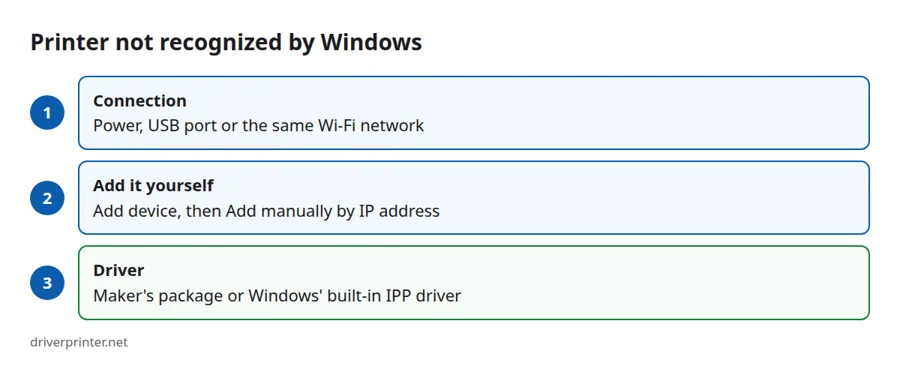
A printer not recognized by Windows almost always has one of four causes: the connection, the way Windows searches for it, the driver, or a Windows setting that blocks maker drivers. Work through the fixes below in order, because the first ones take a minute and solve most cases.
1. Check the printer and the connection
- Make sure the printer is on, shows no error and is ready.
- For USB, plug the cable straight into the computer, not into a hub or a monitor port. Then try another port and, if you have one, another cable.
- For Wi-Fi, check on the printer’s panel that it joined your network. A guest network usually keeps devices apart, so use the main one.
- Restart the printer and the computer, then try again.
2. Run the printer troubleshooter
On Windows 11, open the Get Help app and search for the printer troubleshooter; Microsoft moved its troubleshooters there. On Windows 10, open Settings > Update & Security > Troubleshoot > Additional troubleshooters > Printer. The troubleshooter restarts the print service and repairs common settings on its own.
3. Add the printer from Windows Settings
- Open Settings > Bluetooth & devices > Printers & scanners (Windows 10: Settings > Devices > Printers & scanners).
- Select Add device and wait while Windows searches.
- If the printer appears, add it and follow the prompts.
4. Printer not recognized by Windows over the network: add it by IP address
When the search finds nothing, Windows shows Add manually. First, print the network configuration page from the printer’s menu and note its IP address. Then choose Add a printer using an IP address or hostname, type the address and finish the wizard. This skips network discovery, which routers and firewalls often block.
5. Check Device Manager for a USB printer
Press Windows + X and open Device Manager. Next, choose Action > Scan for hardware changes. If the printer shows up under Other devices with a yellow mark, Windows sees the hardware but has no driver for it, so install the maker’s package from your model’s driver page. If nothing new appears at all, the cable or port is the problem.
6. Check Windows protected print mode
Windows protected print mode lets Windows use only its built-in Microsoft IPP class driver and blocks maker drivers. It works with printers that are Mopria certified. Therefore, if it is on and your printer is older or not Mopria certified, Windows may not set it up. You find the switch under Settings > Bluetooth & devices > Printers & scanners. On a work computer, ask your administrator before you change it.
7. Install the right driver
A missing driver is the last common reason for a printer not recognized by Windows.
Since July 2026, Windows prefers its built-in IPP driver for printers that support it, and since January 2026 it no longer adds new maker drivers to Windows Update, as Microsoft’s end-of-servicing plan shows. So for an older printer, download the package for your exact model and Windows version from the maker. Our guides on installing a printer driver on Windows 11 and fixing driver installation errors cover the steps.
If Windows sees the printer but it will not print
That is a different problem from detection. Check that the right printer is the default, clear stuck jobs and check the printer status. Our printer troubleshooting guide covers offline printers, and the guide on print jobs stuck in the queue shows how to clear them.
Frequently asked questions
Why does my USB printer not appear in Windows?
A loose or faulty cable, a USB hub, the printer’s state or a missing driver can stop detection. Try another port and cable first, and then look in Device Manager.
Does a Wi-Fi printer need to be on the same network?
Yes. The computer and the printer must reach each other. Guest networks and some router settings block this, and adding the printer by IP address often works around it.
Should I reinstall the driver straight away?
No. Check power, cables, the network and Windows’ Add device first. Reinstall only when Windows sees the printer but lists it without a working driver.