Advertisement
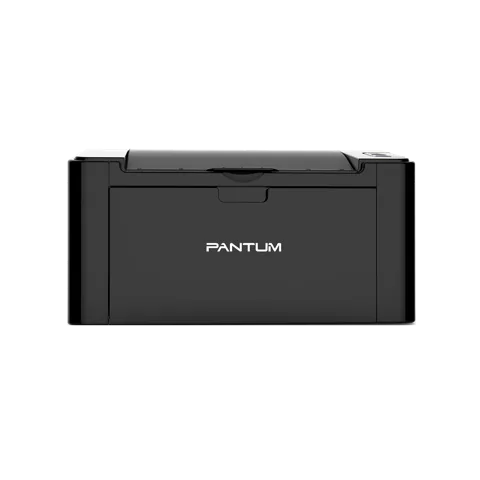 The newest Pantum P2500W Plus driver is 1.0.15 for Windows, 1.0.5 for Mac, 1.1.167 for Linux, as listed on Pantum’s download page. Moreover, the same packages cover P2500W. Besides, each button below downloads the file straight from Pantum’s own server.
Download the Pantum P2500W Plus driver
| Driver | Version | Size | |
|---|---|---|---|
| Pantum P2500W PLUS Windows DriverWindows 7, 8.1, 10, 11; Windows Server 2012, 2016, 2019, 2022, 2025 | V1.0.15 | 21.65MB | Download for Windows |
| Pantum P2500W PLUS Mac DrivermacOS 10.10, 10.11, 10.12, 10.13, 10.14, 10.15, 11.0, 11.1, 11.2, 11.3, 11.4, 11.5, 11.6, 12.0.1, 12.0.2, 12.1, 12.2, 12.3, 12.4, 12.5, 12.6, 13.1 | V1.0.5 | 2.87MB | Download for Mac |
| Pantum P2500W PLUS Linux DriverUbuntu 18.04, 22.04, 24.04 | V1.1.167 | 8.32MB | Download for Linux |
All files come from Pantum’s official download server. Therefore, because one driver serves every model listed below, choose the file by your computer’s system, not by the printer’s model suffix. Pantum’s own driver download page shows the same list.
Models that share this driver
| Model | Print speed | Connection | Functions |
|---|---|---|---|
| P2500W | 22ppm | USB+WIFI |
Pantum P2500W Plus user manual
Pantum's P2500 Series User Manual (English PDF, 2.67MB) is the source for the setup and troubleshooting steps on this page: open the manual.
Pantum P2500W Plus specifications
General
| Print Speed | 22ppm(A4) / 23ppm(Letter) |
|---|---|
| First print out time (FPOT) | <7.8s |
| Maximum monthly volume | 15000 pages |
| Recommended monthly volume | 2000 pages |
| Print languages | GDI |
| Duplex Mode | Manual |
| Paper input | 150 |
| Paper output | 100 |
| Media type | Plain, Thick, Transparency, Cardstock, Label, Envelope, Thin |
| Dimensions (W*D*H) | 337*220*178mm (13.27*8.66*7.01 inch) |
| Weight (kg) | 4.75kg (10.47lbs) |
| Noise | Printing:52dB; Standby:30dB |
| Power Consumption | Printing: Average 370W; Ready: 38W; Sleep Mode: Less than 2W |
| Connectivity | Hi-Speed USB 2.0; WiFi 802.11b/g/n |
| Processor speed | 600MHz |
| Memory | 128MB |
| Consumable | P*-210 (1600) |
Install the Pantum P2500W Plus driver
Pantum recommends its one-click installer for the Pantum P2500W Plus driver, the same program you start after downloading the file above. In the printer’s user guide the steps for a USB connection are:
- First, connect the printer to the computer with the USB cable and switch both on.
- Then start the installer: run the downloaded .exe on Windows, or open the .dmg and double-click the install tool on macOS. (The guide describes the CD that ships with the printer; the downloaded file does the same job.)
- Next, accept the license agreement and privacy policy and click Next. On macOS, enter your computer password when asked.
- After that, choose One-click installation under USB and wait. However, Pantum notes that the time depends on your computer.
- Finally, when it finishes, click Print & Test Page. If the test page prints, the driver works.
However, if the one-click installer fails, start it again and choose More setup methods at the bottom of the window, then select your language, the printer model and Connect via USB.
Connect P2500W to Wi-Fi with WPS
Meanwhile, the Wi-Fi models can join your network without a cable if your router supports WPS:
- First, switch on the printer and the router, and make sure the printer is ready. Press any key to wake it from sleep mode.
- Then hold the Wi-Fi key on the printer’s control panel for more than two seconds, until the blue Wi-Fi indicator blinks.
- After that, within two minutes, press the WPS button on the router.
- Finally, the blue indicator blinks while connecting and stays on once the printer is connected. If nothing connects within two minutes, the printer returns to ready and you repeat steps 2 and 3.
However, WPS only joins the network; to print wirelessly you still install the driver afterwards.
Uninstall the Pantum P2500W Plus driver
On Windows, open the Start menu, then Pantum, then your printer’s entry, choose Uninstall and restart the computer afterwards. On macOS, however, open Go, Applications, Pantum, Utilities and run Pantum Un-install Tool.
Fix common Pantum P2500W Plus problems
If the Pantum P2500W Plus driver installs but the printer still misbehaves, try these fixes. Besides, these causes and fixes come from the troubleshooting chapter of the Pantum user guide.
Printer, toner and paper problems
| Problem | Likely cause | What to do |
|---|---|---|
| Printer does not respond | Loose cable, wrong print port or the printer is set to offline | Reconnect the cable, check that the print job goes to the right port and uncheck Use Printer Offline. Clear any paper jam or empty-paper error first. |
| Toner cartridge not recognized | Dirty chip or contact spring on the cartridge | Clean the chip surface and the contact spring or copper pin. |
| Paper does not feed or several sheets feed together | Paper loaded wrongly, damp or out of specification, too much paper in the tray, dirty feed roller | Load the paper correctly, remove excess sheets, fan the stack to separate the sheets, use dry paper within specification and clean the feed roller. Use the manual feeder for special media. |
| Paper jam | Foreign matter in the feed channel, dirty roller or unsuitable paper | Pull the sheet out gently; if it will not move, open the upper cover, pull it out of the fuser area or past the removed toner cartridge, reinsert the cartridge until it clicks and wait for the ready indicator. |
Print quality problems
| Problem | Likely cause | What to do |
|---|---|---|
| Light or whitish print | Toner is low, damp paper, resolution set too low in the program or a damaged cartridge | Check the toner, use paper within specification, raise the print resolution in the program and replace a damaged cartridge. |
| Toner spots, white spots or toner that rubs off | Dirty feed channel or laser reflective glass, unsuitable paper | Clean the feed channel and the reflective glass at the back of the printer and use paper within specification. |
| Black vertical stripes or gray background | Dirty laser glass, feed channel or cartridge | Clean the laser glass and feed channel, and clean or replace the toner cartridge. |
Wi-Fi problems on P2500W
- Printer not found: first, check that the computer, router and printer are on, that the USB cable is not the only connection in use and that the model has Wi-Fi.
- Network name (SSID) not found: make sure the router is switched on and check its SSID. After any router setting change you must set the printer’s wireless network up again.
- Connection fails: instead, check the security mode and password, move the printer closer to the router, or restart both and repeat the setup.
- Same network but still not found: in that case, a firewall may block the communication, so try again with it switched off. Then print the network configuration page to read the printer’s IP address, then run
pingwith that address in the Command Prompt. If replies come back, computer and printer are on the same network.
Finally, for installer errors on Windows, see the driver installation guide for Windows 11 and the driver installation error guide.
Last checked: Nov 14, 2026. Pantum is a trademark of Zhuhai Pantum Electronics Co., Ltd. This site is not affiliated with Pantum.
Advertisement