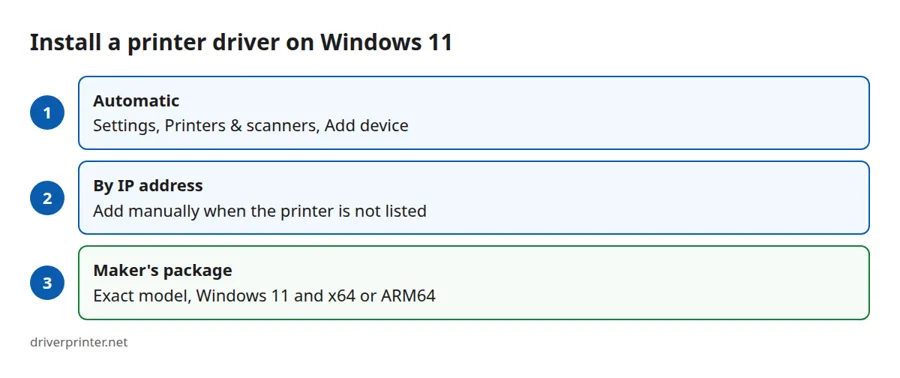
To install a printer driver on Windows 11, first let Windows try on its own, because it sets up most current printers with its built-in driver. If that fails, add the printer by its IP address or install the maker’s package for your exact model. The four methods below go from the quickest to the most complete.
Before you install a printer driver on Windows 11
- Find the exact model on the printer’s label or panel.
- Turn the printer on and connect it by USB, or join it to the same Wi-Fi network as the computer.
- Open Settings > System > About and note System type: x64 or ARM64. A driver must match it.
Method 1: Let Windows 11 add the printer
- Open Settings > Bluetooth & devices > Printers & scanners.
- Select Add device and wait while Windows searches.
- When the printer appears, select Add device next to it.
- Finally, open the printer and print a test page.
Windows usually uses its built-in Microsoft IPP class driver here. Since July 2026 it prefers that driver for every printer that supports it, as Microsoft’s end-of-servicing plan explains. It prints well, but it may lack extras such as scanning tools or ink level apps from the maker.
Method 2: Add the printer by IP address
If the search finds nothing, select Add manually. Then print the network configuration page from the printer’s menu, choose Add a printer using an IP address or hostname and type the address. This works when the router or a firewall blocks automatic discovery.
Method 3: Install the printer driver on Windows 11 with the maker’s package
- Open the driver page for your exact model and choose the file for Windows 11 and your system type.
- Run the downloaded installer from your Downloads folder and follow the prompts.
- Connect the USB cable only when the installer asks, if it says so.
- Afterwards, check that the printer appears under Printers & scanners.
For example, our HP LaserJet P1005 driver page lists the official package for the P1005 and P1006. Note that Windows protected print mode blocks maker packages when it is on, so turn it off first if you need the maker’s driver.
Method 4: Check optional driver updates
Open Settings > Windows Update > Advanced options > Optional updates and look under Driver updates. However, Microsoft stopped adding new maker drivers to Windows Update in January 2026, so newer printers rarely show up there.
Install a printer driver on Windows 11 without internet
Download the package on another computer, copy it with a USB stick and run it on the offline PC. Our offline installation guide shows each step.
If the installation fails
Most failures come from a wrong package, an old driver or a stopped Print Spooler. Our guide on fixing printer driver installation errors covers each case, and the printer not recognized guide helps when Windows does not see the printer at all. For older models, see using old printers on Windows 11.
Frequently asked questions
Does Windows 11 install printer drivers automatically?
Yes, for most current printers it uses its built-in IPP driver. Older printers often still need the maker’s package.
Which driver do I need on an ARM laptop?
An ARM64 driver, or Windows’ built-in driver. An x64-only package does not install on an ARM-based PC.