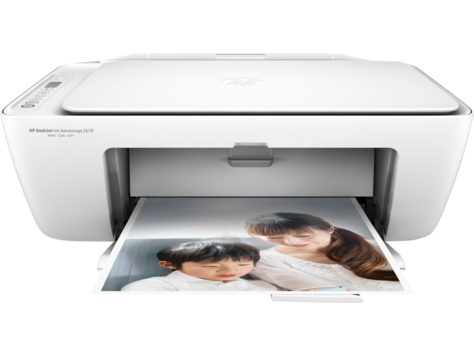
Print, copy and scan from one inkjet unit: the HP DeskJet Ink Advantage 2677 All-in-One suits light home use. HP rates it for 50 to 100 pages a month. Black text prints at up to 5.5 ppm, so large jobs take a while.
HP DeskJet / Ink Advantage 2600 All-in-One Printer series Print and Scan Driver and Accessories
Win 11Win 10 64-bitWin 7 64-bit
Windows: download HP DeskJet / Ink Advantage 2600 All-in-One Printer series Print and Scan Driver and Accessories (136.3 MB). Mac: download Install HP Easy Start (6.3 MB).
Quick install: download the recommended file above, run it, and connect the USB cable only when the installer asks, then print a test page. Full steps
HP DeskJet Ink Advantage 2677 All-in-One driver for Windows
Full software and drivers
Win 11Win 10 64-bitWin 7 64-bit
Details
- File name
Full_Webpack-43.4.2486-DJ2600_Full_Webpack.exe- MD5 checksum (from HP)
f4d9dda0ccf4a489075bf3ac6c810bb5- Software ID (HP)
- al-182912-8 · verify on HP
Setup apps
Win 11Win 10 64-bitWin 7 64-bit
Details
- File name
HPEasyStart_17_6_15.exe- MD5 checksum (from HP)
d3c5840776dec9f1f7e1ba23499a15e8- Software ID (HP)
- mp-366488-3 · verify on HP
Win 11Win 10 64-bit
Details
- Software ID (HP)
- mp-366135-1 · verify on HP
Firmware
Win 11Win 10 64-bitWin 7 64-bit
Details
- File name
DJ2600_2237A.exe- MD5 checksum (from HP)
144a62b5a1a6933f6bca50f44d780d38- Software ID (HP)
- al-214906-6 · verify on HP
HP DeskJet Ink Advantage 2677 All-in-One driver for macOS
macOS 26macOS 15
Details
- File name
HP_Easy_Start.app.zip- MD5 checksum (from HP)
19c1a5f786f5f93f9f778ad71ee444a3- Software ID (HP)
- mp-166618-27 · verify on HP
macOS 26macOS 15macOS 13
Details
- Software ID (HP)
- mp-351535-1 · verify on HP
HP DeskJet Ink Advantage 2677 All-in-One driver for Linux
Linux
Details
- Software ID (HP)
- mp-54524-1 · verify on HP
All files come straight from HP (ftp.hp.com). We checked them against HP’s list on Oct 25, 2026. Systems checked: Win 11, Win 10 64-bit, Win 7 64-bit, macOS 26, macOS 15, macOS 13, Linux. Older systems may have more files on HP’s page for this model.
HP DeskJet Ink Advantage 2677 All-in-One driver support by operating system
64-bit
64-bit
Which HP DeskJet Ink Advantage 2677 All-in-One driver should I choose?
HP offers three kinds of downloads for this printer. The full software and drivers package is 136.3 MB and includes everything you need to install and use it. Setup apps like HP Easy Start are smaller, at 26.5 MB on Windows and 6.3 MB on Mac. They guide you through setup, and the Windows version needs an internet connection for driver installation. Firmware is a 3.4 MB tool. Install it only if you have a network problem that its Network Stack Update addresses.
Duplex printing is manual, with driver support, so you flip the pages yourself. The input tray holds 60 sheets and the output tray holds 25. You can connect by Hi-Speed USB 2.0 or wirelessly, and AirPrint works for mobile printing.
How to install the HP DeskJet Ink Advantage 2677 All-in-One driver
- Download the 136.3 MB full software and drivers package from HP.
- Run the downloaded file and follow the on-screen prompts.
- Choose USB or wireless when the installer asks how the printer connects.
- Finish the installer, then print a test page from any program.
- On a Mac, run Install HP Easy Start (6.3 MB) and follow its prompts.
Adding the printer by hand or installing on Linux? See our printer driver install guide.
Models supported by this HP DeskJet Ink Advantage 2677 driver page
These printers use the same driver files, so every download on this page fits each of them.
Photos on HP DeskJet Ink Advantage 2677 All-in-One
Before you print a photo, load photo paper in the input tray and open the output tray. In Windows, choose Print in your software, confirm the printer is selected, and open its Properties dialog. Depending on the application, that button may be labeled Preferences, Options, Printer Setup, or something similar.
Pick your options on the Printing Shortcuts tab, then click OK and Print. However, if you change the paper size, make sure the matching paper is in the tray. Afterward, take unused photo paper out and store it so it does not curl, because curling can lower print quality. On macOS, use Show Details if options are hidden.
Scanning to a computer in Windows
Before scanning to a computer, install the HP recommended printer software, then make sure the printer and computer are connected and turned on. Place the original print side down on the right front corner of the scanner glass. Then open the printer software from the desktop icon or the Start menu.
In the software, click Scan, then Scan a Document or Photo. Choose Save as PDF for a PDF file, or Save as JPEG for an image file. For finer control, click the More link at the top right of the Scan dialog. Also, if Show Viewer After Scan is selected, you can adjust the image in a preview.
Cleaning cartridge contacts after an error
Put the cartridges back in the printer quickly. Leaving them outside for more than 30 minutes is not recommended, because unprotected nozzles might dry out and clog. To start, check that power is on, open the cartridge access door, and wait for the carriage to move to the center. Then remove the cartridge named in the error.
Hold the cartridge by its sides and wipe only the small gold-colored dots with a dry swab or lint-free cloth, taking care not to smear ink elsewhere. Wipe the gold-colored bumps inside the printer the same way. Reinstall the cartridge and close the door. If the error stays, turn the printer off and on. Alternatively, use single cartridge mode.
Replacing HP DeskJet Ink Advantage 2677 All-in-One cartridges
Check that the printer is on, then open the cartridge access door. Wait until the print carriage moves to the center of the printer. Press down on the old cartridge to release it, and pull it toward you out of its slot.
Take the new cartridge out of its packaging and pull the tab to remove the plastic tape. However, do not touch the electrical contacts. Slide the cartridge into the slot at a slight upward angle, then push up until it clicks into place. Finally, close the cartridge access door.
Improving print quality in Windows
Start with the basics: use original HP cartridges and good paper. HP paper or paper meeting the ColorLok standard gives the best quality, and the sheet should be flat. For images, HP Advanced Photo Paper works best. Keep specialty paper in its original packaging inside a resealable plastic bag, lying flat in a cool, dry place.
Next, confirm the Media and Quality Settings choices in the printer software under Print & Scan, Set Preferences. Also check estimated ink levels and consider replacing low cartridges. To align the cartridges, load plain white letter or A4 paper, choose Maintain Your Printer, click Align Cartridges on the Device Services tab, and follow the onscreen instructions.
HP DeskJet Ink Advantage 2677 All-in-One specifications
Source: HP product specifications for the HP DeskJet Ink Advantage 2677 All-in-One Printer.
Each file lists the MD5 checksum HP publishes. Our guide to checking a driver download shows how to compare it. If an HP link is down, try the Microsoft Update Catalog search for the HP DeskJet Ink Advantage 2677 All-in-One.
HP DeskJet Ink Advantage 2677 All-in-One driver troubleshooting
Computer cannot find the printer
Restart the printer and computer, then check the USB cable is firmly seated. For wireless, confirm both devices share one network. Rerun the installer afterward if the printer still does not appear.
Streaky, faded or blank printouts
Check that the cartridges still have ink and are seated properly. Thermal inkjet nozzles can dry out, so replace empty cartridges promptly. Load plain or photo paper, then print again.
Paper will not feed or jams
Remove all paper and clear any stuck sheets. Fan the stack, then reload no more than 60 sheets in the input tray. Keep the 25-sheet output tray clear.
For “driver is unavailable”, offline printers and stuck print jobs, see our printer driver troubleshooting guide.
HP DeskJet Ink Advantage 2677 All-in-One driver FAQ
Which Windows versions does the driver support?
The full software and drivers package, version 43.4.2486, supports Windows 11, Windows 10 64-bit and Windows 7 64-bit. HP Easy Start 17.6.15 covers Windows 11 and Windows 10 64-bit, with a separate Windows 7 64-bit version.
Which Mac versions are supported?
HP offers Install HP Easy Start, version 2.16.7.260722, for macOS 26 and macOS 15. It is a 6.3 MB download, and HP says this release added macOS 26 support.
What does the firmware update fix?
HP lists version 001.2237A, dated Oct 07, 2022, at 3.4 MB. Its fix is a Network Stack Update. It covers Windows 11, Windows 10 64-bit and Windows 7 64-bit.
Does this printer print borderless or double-sided?
It does not print borderless. Duplex printing is manual, and HP provides driver support for it. Supported media types are plain paper, photo paper and brochure paper.
Drivers for similar HP printers
Owners of related models can find the matching downloads here: HP DeskJet Ink Advantage 2600 All-in-One series driver, HP DeskJet Ink Advantage 2675 All-in-One driver, HP DeskJet Ink Advantage 2676 All-in-One driver, HP DeskJet Ink Advantage 2678 All-in-One driver, HP DeskJet Ink Advantage 2679 All-in-One driver, HP DeskJet 2130 All-in-One driver.
Last checked: Oct 25, 2026. HP and HP DeskJet Ink Advantage 2677 All-in-One are trademarks of HP Inc. This site is not affiliated with HP.