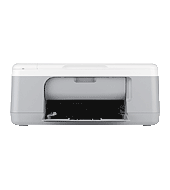
HP offers two downloads for this printer, both utilities for 64-bit Windows 7. The HP Deskjet F2288 All-in-One Printer prints, copies and scans over USB 2.0 only. It suits a single home user who prints 250 to 500 pages a month and does not need Wi-Fi.
Use the printer driver built into Windows
- Search Windows for Change device installation settings and make sure Yes (recommended) is selected.
- Plug the HP Deskjet F2288 All-in-One Printer straight into a USB port on the computer (not a hub or docking station), then turn it on.
- If a Found new hardware message appears, follow the prompts. If you can print, the driver is installed.
- If you cannot print, open Add a printer or scanner in Windows, wait for the printer to appear, click it and choose Add device.
HP recommends the driver built into Windows for this printer. The box above links HP's guide. The downloads below only update or patch an existing installation. They do not replace the driver.
HP Deskjet F2288 All-in-One Printer driver for Windows
Win 7 64-bit
Details
- File name
CPE_SCAN_DESTINATION_UPDATE_hpcom_001_003.exe- MD5 checksum (from HP)
4b940426c620d256d95832107f0fd271- Software ID (HP)
- oj-79942-3 · verify on HP
Win 7 64-bit
Details
- File name
dot4patch_reboot.exe- MD5 checksum (from HP)
46b8059df3e4d7c8414f5acce01954f3- Software ID (HP)
- mp-77751-1 · verify on HP
HP Deskjet F2288 All-in-One Printer driver for Linux
Linux
Details
- Software ID (HP)
- mp-54524-1 · verify on HP
All files come straight from HP (ftp.hp.com). We checked them against HP’s list on Oct 25, 2026. Systems checked: Win 11, Win 10 64-bit, Win 7 64-bit, macOS 26, macOS 15, macOS 13, Linux. Older systems may have more files on HP’s page for this model.
HP Deskjet F2288 All-in-One Printer driver support by operating system
64-bit
Which HP Deskjet F2288 All-in-One Printer driver should I choose?
HP lists no model-specific driver for this printer, only utilities. Both downloads here are in the Utility category. Utilities patch or correct software that is already installed. Choose the 28.5 MB version 3.0 update if scans vanish after installing HP Solution Center 13. Choose the 1.3 MB version 1.0 patch if features broke after upgrading Vista to Windows 7.
Connection is USB 2.0 only. The printer has no wireless and no HP ePrint. Duplex printing is manual, with driver support. It holds 100 sheets in the input tray and 50 in the output tray, and it has no display.
How to install the HP Deskjet F2288 All-in-One Printer driver
- Set Change device installation settings to Yes (recommended) in Windows.
- Plug the printer into a USB port on the computer, not a hub.
- Turn the printer on and follow any Found new hardware prompt.
- If it does not print, use Add a printer or scanner and choose Add device.
Adding the printer by hand or installing on Linux? See our printer driver install guide.
Models supported by this HP Deskjet F2288 driver page
These printers use the same driver files, so every download on this page fits each of them.
Connecting your HP Deskjet F2288 by USB or sharing
The simplest way to connect is a USB cable. Plug it into the rear USB 1.1 full speed port on the printer and connect it to one computer. In that setup every feature is supported, and the Setup Guide walks you through the steps.
However, you can also share the printer. Up to five computers can use it this way. The host computer has to stay on at all times, or the others can't print. Also, the other computers get printing only, while the host keeps all features.
Printing a photo on photo paper
For the best photo quality, HP suggests HP Premium Plus Photo Paper together with genuine HP ink, since the two are designed to work as a pair. First, take all paper out of the input tray. Then load the photo paper with the print side down.
Next, choose Print from the File menu and check that your product is the selected printer. Open the Properties dialog box, then go to the Features tab. Pick your photo paper type and size, and set Print Quality to a high option such as Best.
What the flashing lights on your HP Deskjet F2288 mean
The lights flash in set patterns to point to a problem, so check which ones are on or blinking before you act. If everything is off, the device is simply turned off, and pressing the On button will switch it on. A slowly blinking On light means it is busy with a print, scan, copy or alignment job, so wait.
If the On light is lit and the Check Paper light blinks, the device is out of paper or has a jam. Load paper or clear the jam, then press any button. However, a blinking Check Print Cartridge light can mean the door is open, a cartridge is missing, or tape was left on.
HP Deskjet F2288 All-in-One Printer specifications
Source: HP product specifications for the HP Deskjet F2288 All-in-One Printer.
Each file lists the MD5 checksum HP publishes. Our guide to checking a driver download shows how to compare it. If an HP link is down, try the Microsoft Update Catalog search for the HP Deskjet F2288 All-in-One Printer.
HP Deskjet F2288 All-in-One Printer driver troubleshooting
Windows does not detect the printer over USB
Connect the cable straight to a USB port on the computer, not a hub. Try a different port next. Then turn the printer off and on again, and wait for the Found new hardware prompt.
Prints look faint or streaked
Check that both ink cartridges still contain ink. Replace any empty one. Then reseat the cartridges and print again. Thermal inkjet printers often streak when a cartridge runs low.
Scanning finishes but the scanned files cannot be found
This can happen on Windows 7 64-bit after installing or upgrading to HP Solution Center 13. Install the Critical Update, version 3.0 (28.5 MB). It corrects a scan setting that sent files to a nonexistent folder.
For “driver is unavailable”, offline printers and stuck print jobs, see our printer driver troubleshooting guide.
HP Deskjet F2288 All-in-One Printer driver FAQ
Which operating system do the downloads support?
Both downloads HP offers for this printer are for Windows 7 64-bit. HP does not offer a macOS download for this model.
Do I need to download a driver for this printer?
HP recommends the driver built into Windows. The downloads are utilities that patch an existing installation. They do not replace the driver.
How large are the downloads?
The Critical Update for missing scan files, version 3.0, is 28.5 MB. The HP Print Software Patch for upgrading Vista to Windows 7, version 1.0, is 1.3 MB.
Can this printer connect over Wi-Fi or print on both sides automatically?
No. It has no wireless capability and connects by USB 2.0 only. Duplex printing is manual, and HP provides driver support for it.
Drivers for similar HP printers
Owners of related models can find the matching downloads here: HP Deskjet F2210 All-in-One driver, HP Deskjet F2235 All-in-One driver, HP Deskjet F2238 All-in-One driver, HP Deskjet F2240 All-in-One driver, HP Deskjet F2275 All-in-One driver, HP Deskjet F2276 All-in-One driver.
Last checked: Oct 25, 2026. HP and HP Deskjet F2288 All-in-One Printer are trademarks of HP Inc. This site is not affiliated with HP.