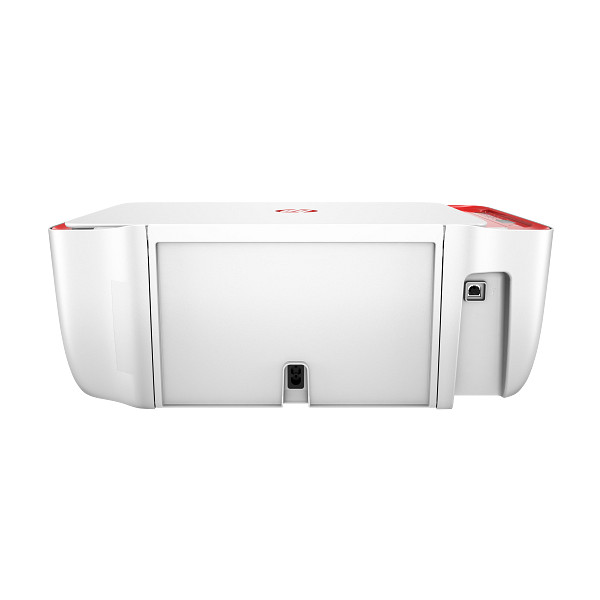
This printer connects over Hi-Speed USB 2.0 or wireless, so you can set it up with a cable or on your network. The HP DeskJet 2652 All-in-One prints, copies and scans. With a 1000-page duty cycle and 50 to 100 pages recommended monthly, it suits light home use.
HP DeskJet / Ink Advantage 2600 All-in-One Printer series Print and Scan Driver and Accessories
Win 11Win 10 64-bitWin 7 64-bit
For Windows, download the HP DeskJet / Ink Advantage 2600 All-in-One Printer series Print and Scan Driver and Accessories (136.3 MB). On Mac, download Install HP Easy Start (6.3 MB).
Quick install: download the recommended file above, run it, and connect the USB cable only when the installer asks, then print a test page. Full steps
HP DeskJet 2652 All-in-One driver for Windows
Full software and drivers
Win 11Win 10 64-bitWin 7 64-bit
Details
- File name
Full_Webpack-43.4.2486-DJ2600_Full_Webpack.exe- MD5 checksum (from HP)
f4d9dda0ccf4a489075bf3ac6c810bb5- Software ID (HP)
- al-182912-8 · verify on HP
Setup apps
Win 11Win 10 64-bitWin 7 64-bit
Details
- File name
HPEasyStart_17_6_15.exe- MD5 checksum (from HP)
d3c5840776dec9f1f7e1ba23499a15e8- Software ID (HP)
- mp-366488-3 · verify on HP
Win 11Win 10 64-bit
Details
- Software ID (HP)
- mp-366135-1 · verify on HP
Firmware
Win 11Win 10 64-bitWin 7 64-bit
Details
- File name
DJ2600_2237A.exe- MD5 checksum (from HP)
144a62b5a1a6933f6bca50f44d780d38- Software ID (HP)
- al-214906-6 · verify on HP
HP DeskJet 2652 All-in-One driver for macOS
macOS 26macOS 15
Details
- File name
HP_Easy_Start.app.zip- MD5 checksum (from HP)
19c1a5f786f5f93f9f778ad71ee444a3- Software ID (HP)
- mp-166618-27 · verify on HP
macOS 26macOS 15macOS 13
Details
- Software ID (HP)
- mp-351535-1 · verify on HP
HP DeskJet 2652 All-in-One driver for Linux
Linux
Details
- Software ID (HP)
- mp-54524-1 · verify on HP
All files come straight from HP (ftp.hp.com). We checked them against HP’s list on Oct 25, 2026. Systems checked: Win 11, Win 10 64-bit, Win 7 64-bit, macOS 26, macOS 15, macOS 13, Linux. Older systems may have more files on HP’s page for this model.
HP DeskJet 2652 All-in-One driver support by operating system
64-bit
64-bit
Which HP DeskJet 2652 All-in-One driver should I choose?
HP offers three kinds of download for this printer. The full software and drivers package is 136.3 MB and covers installing and using the printer on Windows. Choose it for most Windows setups. Setup apps are small guided installers: Easy Start is 26.5 MB on Windows and 6.3 MB on Mac. Firmware is 3.4 MB and carries a Network Stack Update. Install it only to fix a problem that update addresses.
Duplex printing is manual, with driver support provided. The input tray holds 60 sheets and the output tray holds 25. It supports letter, legal, 4 x 6 in, 5 x 7 in, 8 x 10 in and No. 10 envelopes.
How to install the HP DeskJet 2652 All-in-One driver
- Download the Print and Scan Driver and Accessories file (136.3 MB) from the list on this page.
- Run the downloaded file and let the installer start.
- Follow the on-screen prompts to finish installing the software.
- Choose USB or wireless if the installer asks how to connect the printer.
- On a Mac, download Install HP Easy Start (6.3 MB), open it and follow its prompts.
Adding the printer by hand or installing on Linux? See our printer driver install guide.
Models supported by this HP DeskJet 2652 driver page
These printers use the same driver files, so every download on this page fits each of them.
Wireless settings on the HP DeskJet 2652 All-in-One
The Wireless button on the control panel turns the wireless function on or off. When the HP DeskJet 2652 All-in-One has an active connection to a wireless network, the blue Wireless light stays solid and the display shows the Wireless icon and Signal Bars icon. If wireless is off, the light is dark.
However, changing wireless settings in Windows needs the printer software already installed, plus a USB cable. Open the software, click Tools, then Device Setup & Software, and choose Reconfigure Wireless Settings. Do not plug in the cable until prompted. To restore network defaults, hold Wireless and Cancel together for three seconds.
Choosing photo and business paper
HP Everyday Photo Paper suits casual snapshots at a low cost. It has a glossy finish, dries quickly for easy handling and works with any inkjet printer. Sizes include A4, 8.5 x 11 inches, 5 x 7 inches and 4 x 6 inches. The paper is acid-free, so documents last longer.
Besides photo paper, HP Photo Value Packs bundle original HP ink cartridges with HP Advanced Photo Paper, made to work together for long-lasting, vivid prints. For business documents, HP Premium Presentation Paper 120g Matte is a heavy two-sided matte paper for proposals, reports and newsletters. HP Brochure Paper 180g comes glossy or matte, coated on both sides.
Chemical information and recycling notes
HP says it wants customers to have chemical substance information when legal requirements such as REACH call for it. A chemical information report for this product is available at www.hp.com/go/reach. Therefore, owners who need those details have one clear place to check.
In Brazil, the product should not go out with ordinary household rubbish. Collection points and recycling details are at www.hp.com.br/reciclar. The guide also includes a Taiwan restricted substances declaration, a table of listed substances by unit. The latest user guide is at www.support.hp.com.
Using Web Services and HP ePrint
Web Services give the printer web-enabled features for reaching the Internet, getting documents and printing them faster, all without a computer. However, the printer must be connected to the Internet over a wireless connection. If it is connected with a USB cable, you cannot use these web features.
HP ePrint is a free HP service for printing from any location. Once you enable Web Services, the printer is assigned an email address. Send an email to it and the job prints, with no special drivers or software. An HP Connected account, where available, lets you check job status and manage the queue.
Scan troubleshooting for the HP DeskJet 2652 All-in-One
If scanning fails, try the HP Print and Scan Doctor first. This utility tries to diagnose and fix the problem automatically. However, it only runs on Windows, so it will not help on other operating systems. It is a quick first step before anything more involved.
Also, HP offers an online troubleshooting wizard with step-by-step instructions for when you cannot create a scan or your scans come out low quality. The wizard and the Doctor may not be available in every language. The guide also has a section of tips for copy and scan success.
HP DeskJet 2652 All-in-One specifications
Source: HP product specifications for the HP DeskJet 2652 All-in-One Printer.
Each file lists the MD5 checksum HP publishes. Our guide to checking a driver download shows how to compare it. If an HP link is down, try the Microsoft Update Catalog search for the HP DeskJet 2652 All-in-One.
HP DeskJet 2652 All-in-One driver troubleshooting
Computer cannot find the printer on the network
Confirm the printer and computer use the same network. Restart both, then run setup again. Alternatively, connect a USB cable, since the printer has a Hi-Speed USB 2.0 port.
Prints look streaky or faded
Check the ink levels first. Replace any empty cartridge. Load fresh, supported paper and print again, because thermal inkjet output depends on both ink and paper.
Paper does not feed or jams
Remove the stack and reload up to 60 sheets in the input tray. Confirm the size is one the printer supports. Empty the output tray, which holds 25 sheets.
For “driver is unavailable”, offline printers and stuck print jobs, see our printer driver troubleshooting guide.
HP DeskJet 2652 All-in-One driver FAQ
Which Windows versions does the recommended driver support?
The Print and Scan Driver and Accessories download, version 43.4.2486, supports Windows 11, Windows 10 64-bit and Windows 7 64-bit.
How big is the full Windows driver download?
The full Print and Scan Driver and Accessories package is 136.3 MB. The Windows Easy Start setup app is smaller at 26.5 MB.
What does the firmware update fix?
HP lists a Network Stack Update for firmware version 001.2237A. It is 3.4 MB and supports Windows 11, Windows 10 64-bit and Windows 7 64-bit.
Does this printer support AirPrint?
Yes. HP lists Apple AirPrint and Chrome OS for mobile printing. The printer also has wireless capability and one Hi-Speed USB 2.0 port.
Drivers for similar HP printers
Owners of related models can find the matching downloads here: HP DeskJet 2620 All-in-One driver, HP DeskJet 2621 All-in-One driver, HP DeskJet 2622 All-in-One driver, HP DeskJet 2623 All-in-One driver, HP DeskJet 2624 All-in-One driver, HP DeskJet 2628 All-in-One driver.
Last checked: Oct 25, 2026. HP and HP DeskJet 2652 All-in-One are trademarks of HP Inc. This site is not affiliated with HP.