Advertisement
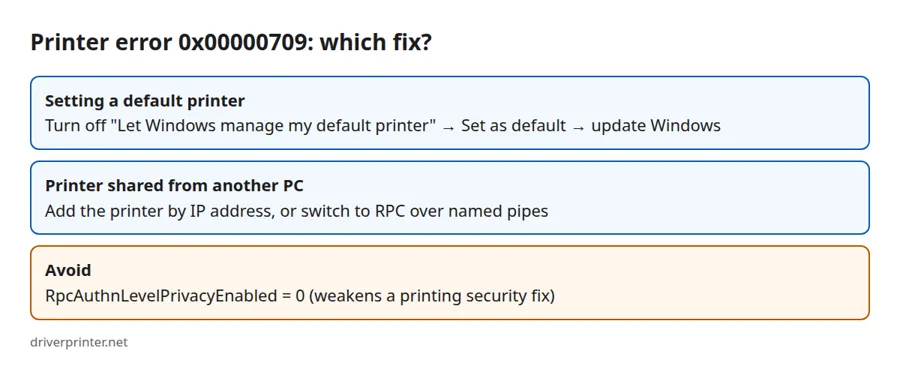
Printer error 0x00000709 appears with the message “Operation could not be completed (error 0x00000709). Double check the printer name and make sure that the printer is connected to the network.” In practice, Windows shows it in two different situations. First, it can appear when you try to set a printer as the default. Second, it can appear when you connect to a printer that is shared from another Windows PC. The fixes differ, so start by finding which case you have.
Which printer error 0x00000709 case do you have?
| When the error appears | Most likely cause | Go to |
|---|---|---|
| You click Set as default on a printer that is installed on this PC | Windows is managing the default printer, or the stored default printer entry is damaged | Fix 1 and Fix 2 |
You add or print to a printer shared from another computer (\\PC-NAME\Printer) |
The print connection method changed in Windows 11 22H2 and later | Fix 3 and Fix 4 |
Fix 1 for printer error 0x00000709: turn off “Let Windows manage my default printer”
When this option is on, Windows makes the last printer you used the default. As a result, a manual change can fail or be undone. To choose the default yourself:
- Open Settings > Bluetooth & devices > Printers & scanners.
- Turn off Let Windows manage my default printer.
- Select your printer and then select Set as default. This button only appears after the switch is off.
For more detail, see our guide on how to change the default printer in Windows 11.
Fix 2: install the latest Windows update and restart
Some reports on Microsoft Q&A trace the error to a damaged default-printer entry in the user profile. Others saw it start after a feature update. Therefore, open Settings > Windows Update, install every pending update, and restart. Then try Fix 1 again. If the error began right after one specific update, you can also check Update history for it.
Editing the default-printer value in the registry by hand is sometimes suggested online. We do not recommend it for home users, because a wrong change can break printing for the whole account. If you still want to try, back up the registry first.
Fix 3: avoid printer error 0x00000709 by adding the printer by IP address
If the printer has its own network connection (Wi-Fi or Ethernet), you do not need the share on the other PC at all. In that case, connect to the printer directly:
- Print the network configuration page from the printer, or check its display, and note the IP address.
- In Printers & scanners, select Add device, wait, and then select Add manually.
- Choose Add a printer using an IP address or hostname and type the address.
- Next, install the driver for your model when Windows asks. Our driver pages list the right file for each system.
This avoids the shared-printer connection that triggers the error. However, it only works when the printer is on the network itself, not when it hangs on a USB cable from the other PC.
Fix 4: stop printer error 0x00000709 on shared printers (named pipes)
For USB printers shared from another PC, the usual cause is a change in Windows 11 22H2: Windows now connects to shared printers with RPC over TCP by default. Microsoft Q&A answers describe switching the client PC back to RPC over named pipes. Make the change on the computer that shows the error, not on the PC that shares the printer.
Windows 11 Pro, Enterprise or Education (Group Policy):
- Press
Win + R, typegpedit.mscand press Enter. - Go to Computer Configuration > Administrative Templates > Printers.
- Open Configure RPC connection settings, set it to Enabled, and choose RPC over named pipes.
- Finally, restart the computer and add the shared printer again.
Windows 11 Home (no Group Policy editor): the same setting lives in the registry. Back up the registry first, then create this value and restart:
Key:   HKEY_LOCAL_MACHINE\Software\Policies\Microsoft\Windows NT\Printers\RPC
Value: RpcUseNamedPipeProtocol  (DWORD 32-bit)
Data:  1   (0 = RPC over TCP, the default)
Another widely shared tip sets RpcAuthnLevelPrivacyEnabled to 0. That value weakens a security fix for printing (CVE-2021-1678), so we do not recommend it. Use the named-pipes setting or a direct IP connection instead.
If the printer error 0x00000709 still appears
- Check the name. Open the share with
\\PC-NAMEin File Explorer and copy the printer name exactly. - Check the other PC. It must be switched on, awake, and on the same network.
- Restart the print spooler on both computers. If the service keeps stopping, see Print Spooler keeps stopping in Windows 11.
- Reinstall the driver. If Windows now says the driver is missing, follow printer driver is unavailable on Windows 11.
- Printer shows offline? That is a different problem; see printer offline but connected to Wi-Fi.
Related printer errors
Errors 0x0000011b and 0x00000bc4 come from the same shared-printer connection changes. Consequently, Fix 3 and Fix 4 above are also the first things to try for them.
Sources
- Microsoft Support: Set a default printer in Windows
- Microsoft Q&A: Windows 11 error 0x00000709 while connecting to shared printer
Advertisement