The newest Pantum P3500DN driver is 2.3.9 for Windows, 1.0.0 for Mac, 1.1.5 for Linux, as listed on Pantum’s download page. Moreover, the same packages cover P3500DN, P3500D. Besides, each button below downloads the file straight from Pantum’s own server. Checked by Günay V. (DriverPrinter Lab) on .
Download the Pantum P3500DN driver
Driver
Version
Size
Pantum P3500 Series Windows DriverWindows 7, 8.1, 10, 11
All files come from Pantum’s official download server. Therefore, because one driver serves every model listed below, choose the file by your computer’s system, not by the printer’s model suffix. Pantum’s own driver download page shows the same list.
Models that share this driver
Model
Print speed
Connection
Functions
P3500DN
–
–
–
Pantum P3500DN user manual
Pantum's P3500 Series User Guide (English PDF, 13.75MB) is the source for the setup and troubleshooting steps on this page: open the manual.
The user guide describes the Windows installer for a USB connection in four steps. If you downloaded the file above instead of using the CD, the same installer starts when you run it.
First, connect the printer to the computer with the USB cable and switch it on.
Then run the installer. Choose the installation language, which defaults to your system language, and make sure the printer model is selected and USB printer is ticked as the installation mode.
Next, accept the license agreement and click Install.
When the installation completes, the window closes by itself after three seconds and the printer becomes your default printer.
For a wired or wireless network connection, however, the guide uses a second installer screen where you pick the series name, language and installation method. In a DHCP network it also recommends giving the printer a fixed IP address or binding the address to the printer MAC address, because the driver stops working when the address changes.
Fix common Pantum P3500DN problems
If the Pantum P3500DN driver installs but the printer still misbehaves, try these fixes. Besides, these causes and fixes come from the troubleshooting chapter of the Pantum user guide.
Printer, toner and paper problems
Problem
Likely cause
What to do
Printer does not respond
Loose cable, wrong print port or the printer is set to offline
Reconnect the cable, check that the print job goes to the right port and uncheck Use Printer Offline. Clear any paper jam or empty-paper error first.
Paper does not feed or several sheets feed together
Paper loaded wrongly, damp or out of specification, too much paper in the tray, dirty feed roller
Load the paper correctly, remove excess sheets, fan the stack to separate the sheets, use dry paper within specification and clean the feed roller. Use the manual feeder for special media.
Paper jam
Foreign matter in the feed channel, dirty roller or unsuitable paper
Pull the sheet out gently; if it will not move, open the upper cover, pull it out of the fuser area or past the removed toner cartridge, reinsert the cartridge until it clicks and wait for the ready indicator.
Print quality problems
Problem
Likely cause
What to do
Light or whitish print
Toner is low, damp paper, resolution set too low in the program or a damaged cartridge
Check the toner, use paper within specification, raise the print resolution in the program and replace a damaged cartridge.
Toner spots, white spots or toner that rubs off
Dirty feed channel or laser reflective glass, unsuitable paper
Clean the feed channel and the reflective glass at the back of the printer and use paper within specification.
Black vertical stripes or gray background
Dirty laser glass, feed channel or cartridge
Clean the laser glass and feed channel, and clean or replace the toner cartridge.
We use cookies to ensure that we give you the best experience on our website. If you continue to use this site we will assume that you are happy with it.
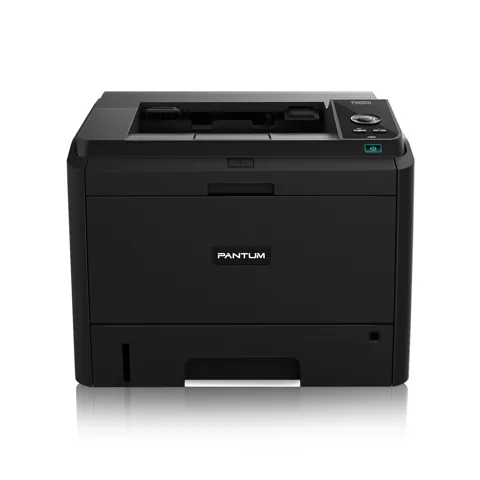 The newest Pantum P3500DN driver is 2.3.9 for Windows, 1.0.0 for Mac, 1.1.5 for Linux, as listed on Pantum’s download page. Moreover, the same packages cover P3500DN, P3500D. Besides, each button below downloads the file straight from Pantum’s own server.