Advertisement
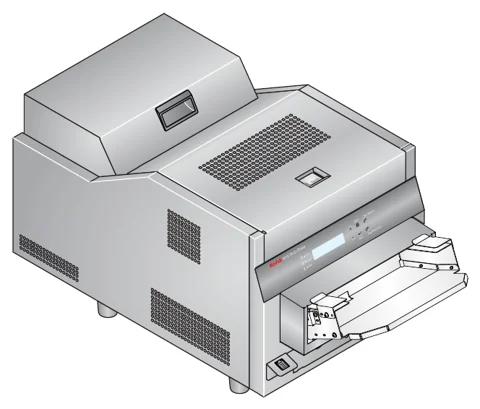 The newest Kodak 8810 driver for the Kodak 8810 Photo Printer on the Kodak Alaris support site is version 1.5 (published Dec 6, 2025) for Windows 8.1 and Windows 10. Also, each button below downloads the file straight from Kodak’s own server.
Download the Kodak 8810 Photo Printer driver
The support page lists these files for this printer. It lists no macOS driver, so this page covers Windows only.
Kodak 8810 Photo Printer files for Windows
| File | Version | Size | |
|---|---|---|---|
Windows printer driverDriverSupports: Windows 10 and Windows 8.1 (32/64-bit) |
1.5Dec 6, 2025 |
41.76 MB |
Download |
Printer firmwareFirmwareSupports: Windows (run on a PC connected by USB) |
6.08Sep 5, 2024 |
1.41 MB |
Download |
Color profile package (ICC)UtilitySupports: Windows |
V12Sep 4, 2024 |
6.17 MB |
Download |
User's guide (PDF)ManualSupports: Any system with a PDF reader |
-Oct 3, 2016 |
6.56 MB |
Download |
Firmware 6.08 contains improvements; Kodak recommends it if your printer runs older firmware than 5.24. You can compare every file with Kodak’s own Kodak 8810 support page.
Install the driver step by step
First, download the driver and run the .exe file. Then the files are extracted to the C:\Kodak folder, and the folder opens by itself. Next, double-click Install_Drv.exe and follow the on-screen instructions. Finally, run the color profile package, which extracts to C:\Kodak_Alaris.
Update the printer firmware
Download the firmware file and run it, then double-click update.bat in the extracted files. The message Completed firmware upgrade appears when the update is finished, so press any key to close the window. However, do not unplug the USB cable or press any key during the update.
Check your Windows version first
Before you download, check which Windows version you run. For example, open Settings, then System, then About, and read the System type line. It tells you whether the PC runs a 64-bit or a 32-bit system. Besides, the edition and the version number appear on the same page. Therefore, you can match them with the Supports line of each file in the table. However, if a file lists only 64-bit systems, a 32-bit PC cannot use it. In that case, choose another file or an older driver version. Finally, restart the PC after the installation, because the new driver loads more reliably after a restart.
For installer errors on Windows, see the driver installation guide for Windows 11 and the driver installation error guide.
Last checked: Nov 9, 2026. The Kodak name is a trademark of Eastman Kodak Company, used under license by Kodak Alaris. This site is not affiliated with Kodak or Kodak Alaris.
Advertisement