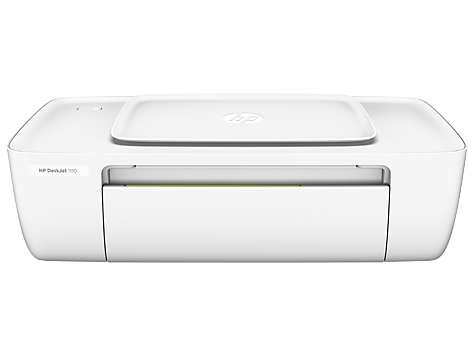
HP offers four downloads for the HP DeskJet 1110: three for Windows and one for macOS. It is a USB-only thermal inkjet printer with no wireless, no display and no mobile printing. A recommended volume of 50 to 200 pages a month suits a home desk or a light home office.
HP DeskJet 1110 series Print and Scan Driver and Accessories
Win 11Win 10 64-bitWin 7 64-bit
On Windows, download "HP DeskJet 1110 series Print and Scan Driver and Accessories" (124.7 MB). On macOS, download "Install HP Easy Start" (6.3 MB).
Quick install: download the recommended file above, run it, and connect the USB cable only when the installer asks, then print a test page. Full steps
HP DeskJet 1110 driver for Windows
Full software and drivers
Win 11Win 10 64-bitWin 7 64-bit
Details
- File name
Full_Webpack-40.15.1230-DJ1110_Full_Webpack.exe- MD5 checksum (from HP)
0b5519b9cf6432a14eb7ed533c4039b4- Software ID (HP)
- al-146795-4 · verify on HP
Setup apps
Win 11Win 10 64-bitWin 7 64-bit
Details
- File name
HPEasyStart_17_6_15.exe- MD5 checksum (from HP)
d3c5840776dec9f1f7e1ba23499a15e8- Software ID (HP)
- mp-366488-3 · verify on HP
Win 11Win 10 64-bit
Details
- Software ID (HP)
- mp-366135-1 · verify on HP
HP DeskJet 1110 driver for macOS
macOS 26macOS 15
Details
- File name
HP_Easy_Start.app.zip- MD5 checksum (from HP)
19c1a5f786f5f93f9f778ad71ee444a3- Software ID (HP)
- mp-166618-27 · verify on HP
macOS 26macOS 15macOS 13
Details
- Software ID (HP)
- mp-351535-1 · verify on HP
HP DeskJet 1110 driver for Linux
Linux
Details
- Software ID (HP)
- mp-54524-1 · verify on HP
All files come straight from HP (ftp.hp.com). We checked them against HP’s list on Oct 25, 2026. Systems checked: Win 11, Win 10 64-bit, Win 7 64-bit, macOS 26, macOS 15, macOS 13, Linux. Older systems may have more files on HP’s page for this model.
HP DeskJet 1110 driver support by operating system
64-bit
64-bit
Which HP DeskJet 1110 driver should I choose?
HP sorts these downloads into two categories. "Full software and drivers" is the 124.7 MB Windows package, and it holds the complete software for the printer. Choose it for a standard Windows install. "Setup app" downloads are small Easy Start tools: 26.5 MB on Windows and 6.3 MB on macOS. They need an internet connection to fetch drivers. Windows 7 64-bit users need Service Pack 1 (SP1) at minimum for Easy Start.
This printer connects by one USB 2.0 port only, so keep it near the computer. Duplex printing is manual, and the driver supports it. The input tray holds 60 sheets, the output tray holds 25, and borderless printing is not available.
How to install the HP DeskJet 1110 driver
- Download "HP DeskJet 1110 series Print and Scan Driver and Accessories" (124.7 MB) from the list on this page.
- Run the downloaded file and follow the installer prompts.
- Connect the printer to the computer with a USB cable when the installer asks for it.
- Power on the printer and let the installer finish.
- Print a test page from any Windows program to confirm the setup.
- On a Mac, run "Install HP Easy Start" (6.3 MB) instead and follow its prompts.
Adding the printer by hand or installing on Linux? See our printer driver install guide.
Power light meanings on your HP DeskJet 1110
The Power button light tells you what the printer is doing. If it is off, the printer is powered off. A dim light means Sleep mode, which starts by itself after 5 minutes of inactivity. A light that stays on means the printer is on and ready to print.
Fast blinking signals an error, so follow the on-screen messages. If none appear, try printing a document to trigger one. Plain blinking means a job is processing, and pressing Power cancels it. However, after clearing a jam, a stalled carriage or missing paper, press Power once to resume. Two presses within two seconds switch the printer off.
Printing at maximum dpi on HP DeskJet 1110
Maximum dpi gives sharp, high-quality images on photo paper. The trade-off is time: it prints slower than other settings and needs a large amount of disk space. Therefore, save it for photo paper jobs. HP lists the supported resolutions on the support website at www.hp.com/support.
In Windows, choose Print, confirm your printer, open Properties, then go to the Paper/Quality tab and pick a paper type. Click Advanced and set Print in Max DPI to Yes, choose the paper size, and click OK. On OS X, open Print, choose Paper Type/Quality and set Quality to Maximum dpi.
Caring for your ink cartridges
To keep cartridges from drying out, switch the printer off with the Power button and wait until the light goes out. Also, leave cartridges taped and unopened until you are ready to install them, because the tape reduces ink evaporation. If you remove one, put it back as soon as possible.
When installing, match each cartridge's color and icon to its slot and make sure it snaps into place. Align the printer for best print quality. If the Estimated Ink Levels screen shows a low cartridge, consider buying a replacement. However, you need not swap it until print quality becomes unacceptable.
HP DeskJet 1110 specifications
Source: HP product specifications for the HP DeskJet 1110 Printer.
Each file lists the MD5 checksum HP publishes. Our guide to checking a driver download shows how to compare it. If an HP link is down, try the Microsoft Update Catalog search for the HP DeskJet 1110.
HP DeskJet 1110 driver troubleshooting
The computer does not detect the printer over USB
Plug the USB cable straight into the computer, not a hub. Try a different port or cable next. Restart both the printer and the computer, then run the installer again.
Prints look faded, streaky or have missing lines
Check that the ink cartridges are seated properly and not empty. Replace any empty cartridge. Plain paper works for everyday text, and HP photo paper suits photos. Print again to compare.
Paper jams or feeds crooked from the tray
Remove the stuck sheets gently. Keep the stack at or below the 60-sheet input capacity. Reload it flat and aligned, then resend the print job.
For “driver is unavailable”, offline printers and stuck print jobs, see our printer driver troubleshooting guide.
HP DeskJet 1110 driver FAQ
Which Windows versions does the full driver support?
The 124.7 MB full driver, version 40.15.1230, supports Windows 11, Windows 10 64-bit and Windows 7 64-bit.
Which download do I need on a Mac?
Download "Install HP Easy Start", version 2.16.7.260722. It is 6.3 MB and supports macOS 26 and macOS 15.
Can I print wirelessly from a phone?
No. HP lists no wireless capability, no HP ePrint and no mobile printing support. The only connection is one USB 2.0 port.
Does it print on both sides automatically?
No. HP lists duplex printing as manual, with driver support provided. You turn the pages over yourself.
Drivers for similar HP printers
Owners of related models can find the matching downloads here: HP DeskJet 1111 driver, HP DeskJet 1112 driver, HP DeskJet Ink Advantage 1115 driver, HP DeskJet Ink Advantage 1118 driver, HP Deskjet 1010 series driver, HP Deskjet 1510 All-in-One driver.
Last checked: Oct 25, 2026. HP and HP DeskJet 1110 are trademarks of HP Inc. This site is not affiliated with HP.