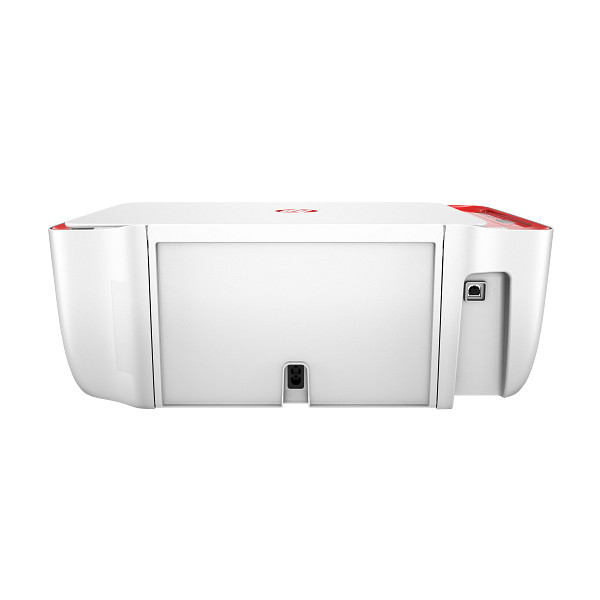
Prints, copies and scans for people with light home or small-desk workloads. The HP DeskJet 2655 All-in-One is rated for 50 to 100 pages a month, with a duty cycle of up to 1000 pages. It connects by USB or wireless.
HP DeskJet / Ink Advantage 2600 All-in-One Printer series Print and Scan Driver and Accessories
Win 11Win 10 64-bitWin 7 64-bit
On Windows, download HP DeskJet / Ink Advantage 2600 All-in-One Printer series Print and Scan Driver and Accessories (136.3 MB). On a Mac, download Install HP Easy Start (6.3 MB).
Quick install: download the recommended file above, run it, and connect the USB cable only when the installer asks, then print a test page. Full steps
HP DeskJet 2655 All-in-One driver for Windows
Full software and drivers
Win 11Win 10 64-bitWin 7 64-bit
Details
- File name
Full_Webpack-43.4.2486-DJ2600_Full_Webpack.exe- MD5 checksum (from HP)
f4d9dda0ccf4a489075bf3ac6c810bb5- Software ID (HP)
- al-182912-8 · verify on HP
Setup apps
Win 11Win 10 64-bitWin 7 64-bit
Details
- File name
HPEasyStart_17_6_15.exe- MD5 checksum (from HP)
d3c5840776dec9f1f7e1ba23499a15e8- Software ID (HP)
- mp-366488-3 · verify on HP
Win 11Win 10 64-bit
Details
- Software ID (HP)
- mp-366135-1 · verify on HP
Firmware
Win 11Win 10 64-bitWin 7 64-bit
Details
- File name
DJ2600_2237A.exe- MD5 checksum (from HP)
144a62b5a1a6933f6bca50f44d780d38- Software ID (HP)
- al-214906-6 · verify on HP
HP DeskJet 2655 All-in-One driver for macOS
macOS 26macOS 15
Details
- File name
HP_Easy_Start.app.zip- MD5 checksum (from HP)
19c1a5f786f5f93f9f778ad71ee444a3- Software ID (HP)
- mp-166618-27 · verify on HP
macOS 26macOS 15macOS 13
Details
- Software ID (HP)
- mp-351535-1 · verify on HP
HP DeskJet 2655 All-in-One driver for Linux
Linux
Details
- Software ID (HP)
- mp-54524-1 · verify on HP
All files come straight from HP (ftp.hp.com). We checked them against HP’s list on Oct 25, 2026. Systems checked: Win 11, Win 10 64-bit, Win 7 64-bit, macOS 26, macOS 15, macOS 13, Linux. Older systems may have more files on HP’s page for this model.
HP DeskJet 2655 All-in-One driver support by operating system
64-bit
64-bit
Which HP DeskJet 2655 All-in-One driver should I choose?
The full software and drivers package (136.3 MB) holds everything needed to install and use the printer. HP Easy Start is a setup app. It guides you through setup and gets the drivers for you. The Windows version is 26.5 MB and needs an internet connection during driver installation. The Mac version is 6.3 MB. The firmware update is 3.4 MB. Install it only if you need the network stack update it contains.
Duplex printing is manual, and HP provides driver support for it. The printer has a 60-sheet input tray and a 25-sheet output tray. It supports USB 2.0 and wireless, plus Apple AirPrint and Chrome OS printing. It cannot multitask.
How to install the HP DeskJet 2655 All-in-One driver
- Download the full software and drivers package (136.3 MB) from the list above, and save it to your computer.
- Run the downloaded file and follow the prompts on screen.
- Pick the connection type the installer offers: USB cable or wireless.
- For USB, plug the cable into the printer and your computer when the installer asks.
- Print a test page once setup finishes.
- On a Mac, download Install HP Easy Start (6.3 MB), open it and follow its prompts.
Adding the printer by hand or installing on Linux? See our printer driver install guide.
Models supported by this HP DeskJet 2655 driver page
These printers use the same driver files, so every download on this page fits each of them.
Go wireless with the HP DeskJet 2655 All-in-One
If you first installed the printer over a USB cable, you can move it onto your wireless network later without starting over. You need an 802.11b/g/n network with a router or access point. However, the printer works only on 2.4GHz, so check your router's band.
Before you start, leave the USB cable connected until the software tells you to unplug it. Also make sure the computer is on the wireless network you want the printer to join. In Windows, open the HP printer software, click Tools, then Device Setup & Software, and choose Convert a USB connected printer to wireless.
Print on both sides of the page
For two-sided printing in Windows, open the Properties dialog from your print window. Depending on the program, that button may be named Options, Printer Setup, Printer Properties, Printer or Preferences. Then pick the Two-sided (Duplex) Printing shortcut on the Printing Shortcuts tab. If you change the paper size, load matching paper in the input tray.
On a Mac, choose Print from the File menu, then pick Paper Handling, set Page Order to Normal and Pages to Print to Odd Only. After the odd pages print, take them from the output tray, reload them with the printed end going in first and the blank side facing the front, then choose Even Only.
Review detailed scan settings
In the HP Scan dialog, click the More link in the top right corner to open the detailed settings pane. The left column summarizes current settings for each section, while the right column lets you change the section you have highlighted. Click each section to review it.
Most settings use drop-down menus. A plus sign beside a setting means it opens a new pane, and you must accept or cancel changes there to get back. When you finish, click Scan, or click the save icon next to the shortcut first. Also, online help covers file type, resolution, contrast and previews.
Set up Web Services
Your printer must already be online through a wireless connection before you set up Web Services. Open the embedded web server, click the Web Services tab, and under Web Services Settings click Setup, then Continue. Follow the onscreen instructions to accept the terms of use.
If asked, let the printer check for and install updates. When one is available, the printer downloads it, installs it and restarts, so you then repeat the setup from step 1. If your network uses a proxy, follow the prompts, or ask your network administrator for the details. Finally, the printer prints an information page to finish the setup.
Hardware faults on the HP DeskJet 2655 All-in-One
If the printer will not start a job, check the cartridge access door. It has to be closed before printing can begin. Similarly, if the printer shuts down unexpectedly, look at the power connections and make sure the power cord is firmly plugged into an outlet that works.
However, a shutdown is not always a fault. With Auto-Off enabled, the printer turns itself off after two hours of inactivity to cut energy use. For a printer failure, turn the printer off and on again. If that does not fix it, contact HP for help.
HP DeskJet 2655 All-in-One specifications
Source: HP product specifications for the HP DeskJet 2655 All-in-One Printer.
Each file lists the MD5 checksum HP publishes. Our guide to checking a driver download shows how to compare it. If an HP link is down, try the Microsoft Update Catalog search for the HP DeskJet 2655 All-in-One.
HP DeskJet 2655 All-in-One driver troubleshooting
Computer cannot find the printer over wireless or USB
Confirm the printer is on. For USB, try another cable or a different port on the computer directly, not a hub. For wireless, keep the printer and computer on the same network. Then rerun the setup software.
Streaks, faded text or blank areas on printed pages
Check that the ink cartridges are installed correctly and not empty. Remove and reseat them. Make sure the paper in the tray is a supported size and lies flat. Then print another test page.
Printer pulls in several sheets or none at all
Remove the paper and fan the stack. Reload no more than 60 sheets in the input tray, in a supported size such as letter or legal. Then resend the print job.
For “driver is unavailable”, offline printers and stuck print jobs, see our printer driver troubleshooting guide.
HP DeskJet 2655 All-in-One driver FAQ
Which Windows versions does the full driver support?
The full software and drivers package, version 43.4.2486, supports Windows 11, Windows 10 64-bit and Windows 7 64-bit. HP Easy Start supports Windows 11 and Windows 10 64-bit, and has a separate Windows 7 64-bit version.
Which Mac versions does HP Easy Start support?
Install HP Easy Start, version 2.16.7.260722, supports macOS 26 and macOS 15. The download is 6.3 MB. HP lists Added macOS 26 Support as the change in this version.
What does the firmware update fix?
HP lists a Network Stack Update for firmware version 001.2237A. The download is 3.4 MB and runs on Windows 11, Windows 10 64-bit and Windows 7 64-bit.
How fast does this printer print?
HP rates it at up to 5.5 ppm in both black and color. The first page comes out in as little as 14 seconds in black.
Drivers for similar HP printers
Owners of related models can find the matching downloads here: HP DeskJet 2620 All-in-One driver, HP DeskJet 2621 All-in-One driver, HP DeskJet 2622 All-in-One driver, HP DeskJet 2623 All-in-One driver, HP DeskJet 2624 All-in-One driver, HP DeskJet 2628 All-in-One driver.
Last checked: Oct 25, 2026. HP and HP DeskJet 2655 All-in-One are trademarks of HP Inc. This site is not affiliated with HP.