Advertisement
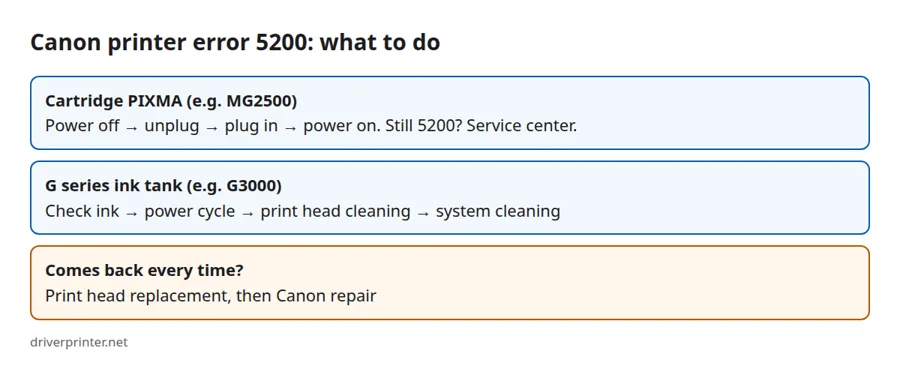
Canon printer error 5200 is a support code that Canon’s manuals describe simply as “Printer error has occurred.” It is a general hardware warning, not a driver or computer problem. So reinstalling the driver will not clear it. What you should do depends on your printer type: a PIXMA with FINE cartridges, or a PIXMA G series (MegaTank) with refillable ink tanks.
Canon printer error 5200 on cartridge PIXMA models
On cartridge models such as the PIXMA MG2500 series, Canon’s own error page gives one short procedure:
- Turn the printer off.
- Unplug the power cord from the wall socket.
- Plug it back in and turn the printer on again.
If the support code 5200 comes back, Canon tells you to contact its service center. In other words, there is no further home fix that Canon documents for these models.
Canon printer error 5200 on G series ink tank models
For the PIXMA G3000 series, Canon lists a longer procedure. Canon stresses that you must do every step, in this order, because changing the order or skipping a step can cause other problems:
- Check the ink levels and refill any tank that is low.
- Turn the printer off and unplug it.
- Plug it back in and turn it on.
- Run a print head cleaning. On the G3000 panel, hold down the Stop button until the Alarm lamp flashes twice, then release it. Cleaning takes about one minute and is finished when the ON lamp stops flashing and stays lit.
- Run a system cleaning. On the G3000 panel, hold Stop until the Alarm lamp flashes 5 times, then release it. A deep cleaning is not needed.
Before a system cleaning, make sure every tank has enough ink. Canon warns that a system cleaning with too little ink may damage the printer. Refill any tank whose level is below the lowest mark first.
You can also start both cleanings from the computer, in the printer driver’s maintenance tab on Windows or in Canon’s utility on macOS. If the error returns after these steps, Canon says that replacing the print heads may solve it. If it still comes back after new print heads, the printer needs a repair at a Canon service center.
Button sequences differ between models. Therefore, check the 5200 page in the online manual for your exact model at Canon’s manual site, or the model’s own support page.
Canon printer error 5100 is a different problem
Support code 5100 is often confused with 5200, but the cause is different. On the MG2500 series, Canon explains that something is stopping the FINE cartridge holder from moving, for example jammed paper or leftover protective tape. The fix is to cancel printing, turn the printer off, remove the blockage, and turn it on again. Be careful not to touch the parts inside the printer while you do this.
What not to do
- Do not tilt the printer when you move it, because ink can leak out.
- Do not run cleaning after cleaning in a loop. Each cleaning uses ink; follow Canon’s order once and then judge the result.
- Do not reinstall drivers to fix 5200. The code comes from the printer, so a new driver cannot clear it.
When it is time to get the printer repaired
Several Canon community threads show that a 5200 that returns every time, for example during an ink flush, usually needs service. If your printer is still under warranty, contact Canon support before paying for a repair. For an older cartridge printer, a repair can cost more than a new printer, so compare first.
Drivers and setup for Canon printers
Once the printer works again, you can get the right driver from our pages, for example the Canon PIXMA G3010 driver or the Canon PIXMA MG2540S driver. For general printing problems, see our printer troubleshooting guide.
Sources
- Canon manual, MG2500 series: Support code 5200 and 5100
- Canon manual, G3000 series: Support code 5200
- Canon USA knowledge base: Support code 5200 appears (G620)
Advertisement