These are the printer driver problems we hear about most, with fixes that work on any brand. Each printer page on our site also lists problems specific to that model, including the ones fixed by its latest driver or firmware.
“Driver is unavailable” on Windows
Windows shows this when the driver is missing or damaged, often after a Windows update.
- Open Settings, then Bluetooth & devices, then Printers & scanners.
- Select the printer and choose Remove.
- Download the recommended driver from your printer’s page and install it again.
If the same error comes back, remove the old driver package as well. Our install guide explains how under “Remove an old driver completely”.
The printer shows as offline

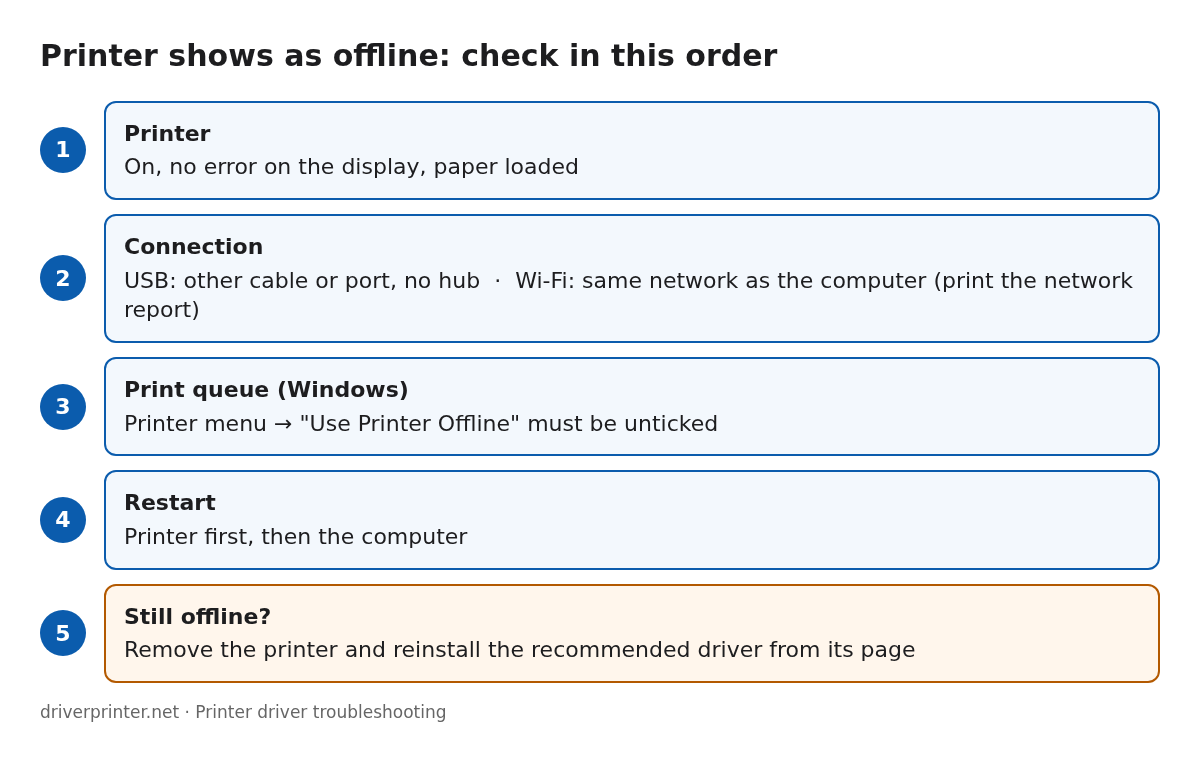
- Check that the printer is on and shows no error on its display.
- For USB, try another cable or port, and connect directly to the computer, not through a hub.
- For Wi-Fi, check that the printer is still on the same network as the computer. Print the printer’s network report to see its connection and IP address.
- On Windows, open the print queue. Open the Printer menu and make sure “Use Printer Offline” is not ticked.
- Restart the printer, then the computer.
- If it is still offline, remove the printer and install the recommended driver again.
Wi-Fi printers often go offline when the router gives them a new IP address. Setting a fixed (reserved) IP address for the printer in the router settings stops this.
Print jobs are stuck in the queue
On Windows, the print spooler service can stop working.
- Press Windows + R, type
services.mscand press Enter. - Find Print Spooler, right-click it and choose Restart.
- Try printing again.
On a Mac, open System Settings, then Printers & Scanners. Select the printer, open the print queue and delete the stuck jobs.
Error 0x00000709: cannot set the default printer
Windows may refuse to change the default printer while it manages the default itself. Open Settings, then Bluetooth & devices, then Printers & scanners, and turn off “Let Windows manage my default printer”. Then select your printer and choose “Set as default”.
Error 0x0000011b with a shared printer
This error appears when a printer is shared from another PC on the network, usually after a security update. Install the latest Windows updates on both computers. If that does not help, connect to the printer directly by its IP address (Add device, then “Add manually”) instead of through the other PC.
The installer cannot find the printer
- USB printers: connect the cable when the installer asks, not before.
- Network printers: the computer and the printer must be on the same network. Guest networks and VPNs often block printers.
- Some routers have a separate 5 GHz network. Many printers only use 2.4 GHz, so connect both devices to the same band if the printer is not found.
- A firewall or security program can block the search. Allow the installer when it asks.
Printing works but scanning does not
Basic drivers and drivers from Windows Update usually include printing only. Install the full software and drivers download from your printer’s page to get the scan software.
Pages print strange characters or are blank
This usually means the wrong driver is selected, for example a driver for a different model or language (PCL or PostScript). Remove the printer and install the driver for your exact model. Then print a test page from the printer’s properties.
The driver does not install on an ARM laptop
Windows laptops with ARM processors cannot use standard 64-bit printer drivers. Look for downloads marked “ARM64” on your printer’s page. If there are none, many network printers still work through the printer support built into Windows 11 (Mopria), without any download.
The printer stopped working after a Windows update
- Check your printer’s page for a newer driver and install it.
- If that does not help, remove the printer (see “Driver is unavailable” above) and add it again.
- Windows Update can also offer printer drivers. Open Settings, then Windows Update, then Advanced options, then Optional updates.
“Software for this device is not available” on a Mac
This means macOS has no driver for the printer. Install the Mac download from your printer’s page, then add the printer again in Printers & Scanners. If the printer supports AirPrint, choose AirPrint in the “Use” menu instead.
Reset the printing system on a Mac
If nothing else helps, open System Settings, then Printers & Scanners. Control-click the printer list and choose “Reset printing system”. This removes all printers, so add yours again afterwards.
Still stuck?
Check that you have the right file with our download check guide, and see the printer driver install guide. You can also report a problem on our contact page.